The quickest way to make emojis bigger is to send them without any other text. In iPhone Messages, a message with one to three emoji and nothing else is typically shown at a larger size, and several Android messaging apps treat emoji-only messages in a similar way. To make emoji bigger in every app that supports adjustable text size, including inside sentences, raise the text size: on iPhone, go to Settings, Display & Brightness, Text Size, and on Android, open Settings and search for Font size.
The text size steps follow Apple’s article Change the font size on your iPhone, iPad, and iPod touch and Google’s Android Accessibility Help page Change text & display settings, both checked on November 27, 2026. Neither company publishes an emoji size setting, so the other methods here rely on how the messaging apps display emoji, and the details can change with app updates.
This guide is part of DeviceGod’s iPhone how-to guides.
Make emojis bigger in iPhone Messages
- Open a conversation in Messages.
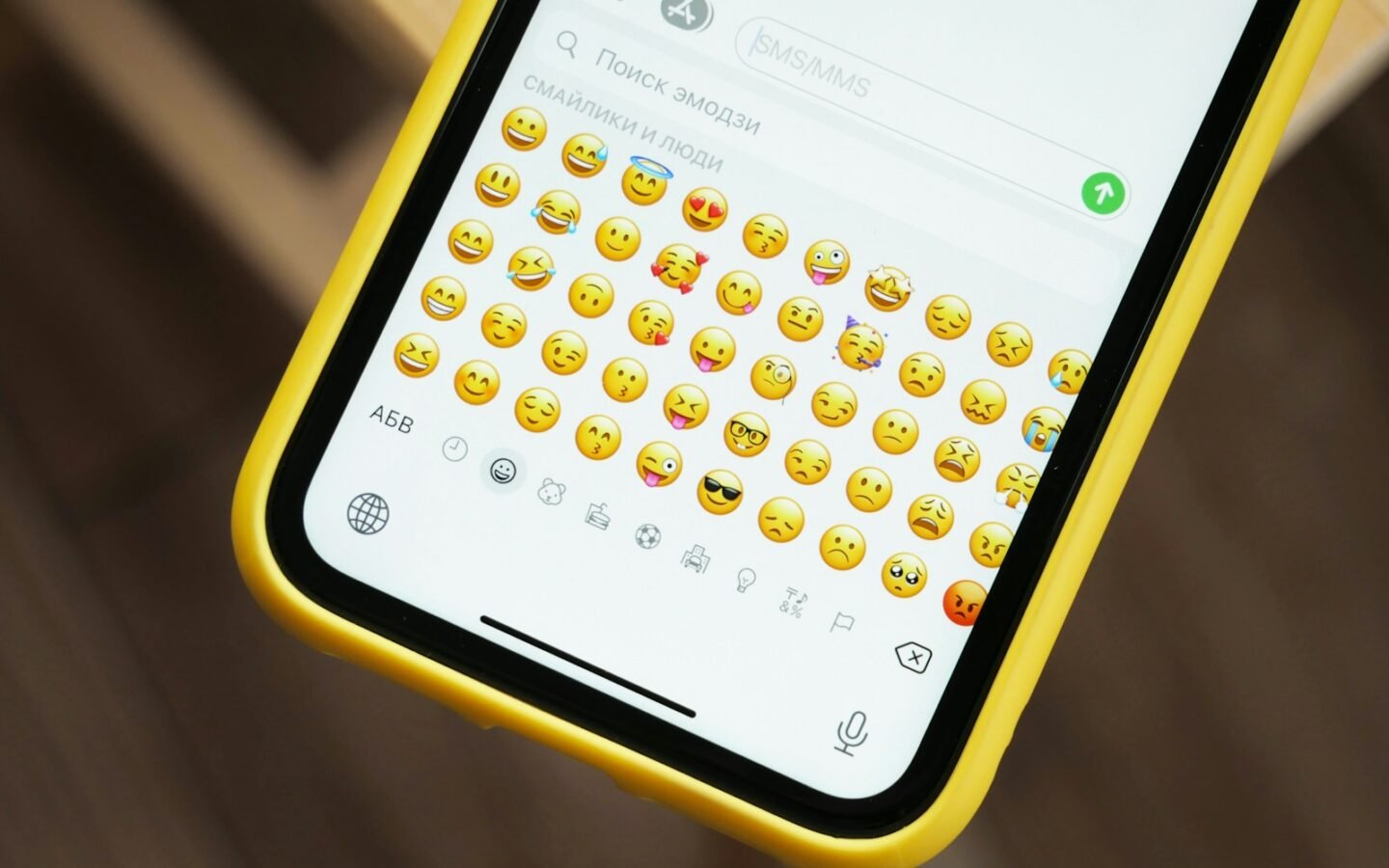
- Tap the emoji key on the keyboard and choose one, two or three emoji.
- Do not type anything else, not even a space or a period.
- Tap Send. The emoji appear without a bubble and at a larger size.
Apple does not publish exact size rules, so treat this as how Messages typically behaves. The fewer emoji you send, the bigger they tend to look. Once the message contains a fourth emoji, or any letters, the emoji drop back to normal text size inside a bubble.
Ways to make emojis bigger
| Method | Works on | What it changes |
|---|---|---|
| Send one to three emoji with no text | iPhone Messages, and emoji-only messages in many Android apps | Only that message |
| Raise the text size | iPhone and Android | Text and emoji in apps that follow the system text size |
| Use an emoji as a sticker | iPhone Messages on recent iOS versions | One large emoji you can place on a message |
| Send with a bubble or screen effect | iPhone Messages (iMessage) | A brief animation that enlarges or repeats the emoji |
| Change the app’s font size | WhatsApp on Android and some other chat apps | Text and emoji inside that app |
Make all emojis bigger with text size on iPhone
Emoji inside a sentence follow the text size, so a larger font means larger emoji in Messages, Mail, Notes and other apps that support it. This changes what you see on your own phone. It does not change how large the emoji look on the other person’s device.
- Open Settings and tap Display & Brightness.
- Tap Text Size.
- Drag the slider to the right.
For sizes beyond the normal range, Apple gives a second path: Settings, Accessibility, Display & Text Size, Larger Text. Turn it on and drag the slider further.
Make emojis bigger on Android
- Send emoji alone. In Google Messages, a message that contains only emoji is usually shown larger than emoji mixed with words. Other Android messaging apps may not do this.
- Raise the font size. Open Settings, search for Font size, select it, and move the slider to the right. Google notes that the steps vary by Android version and device. On Samsung phones the setting is under Display, Font size and style.
- Raise the display size if you want everything on screen larger. Open Settings, search for Display size, and move the slider.
The keyboard has its own size. Depending on your Gboard version, use the Resize option in the keyboard toolbar, or open the keyboard’s settings, tap Preferences, and look for Keyboard height. A taller keyboard gives larger keys and a roomier emoji panel, although the emoji you send stay the same size.
Gboard also has Emoji Kitchen. In supported apps, selecting compatible emoji can bring up Emoji Kitchen sticker suggestions above the keyboard. Tap one to send it as a large sticker.
Use an emoji as a large sticker on iPhone
On recent versions of iOS, every emoji can be used as a sticker in Messages, which lets you place one on top of a message at a larger size.
- Open the emoji keyboard in a Messages conversation.
- Touch and hold an emoji, then drag it up into the conversation and drop it on a message bubble.
- Pinch with a second finger while dragging to make the sticker larger or smaller before you let go.
If dragging does not work on your iPhone, the feature may not be available in your iOS version, and the emoji-only method above still applies.
Make emojis fill the screen with iMessage effects
- Type one or more emoji in an iMessage conversation, where the Send button is blue.
- Touch and hold the Send button.
- Choose Bubble for effects such as Slam or Loud, which enlarge the message for a moment, or choose Screen and swipe to Echo, which repeats the message across the whole screen. The effect is a short animation, and the emoji in the conversation stays its usual size afterwards.
- Tap the Send arrow.
Effects play only for people using iMessage. In a green-bubble conversation the option does not appear.
Make emojis bigger in WhatsApp
- Send a single emoji. One emoji alone is shown largest, and two or three alone are shown slightly smaller. Add text and they return to normal size.
- On Android, change the chat font size. Open WhatsApp, go to Settings, Chats, Font size, and choose Large.
- On iPhone, WhatsApp follows the system text size, so use Settings, Display & Brightness, Text Size.
How to make emojis small again
- Add any text to the message, or send four or more emoji, to get normal-size emoji in iPhone Messages.
- Lower the text size in the same setting you raised it in: Text Size on iPhone, Font size on Android.
- Turn off Larger Text on iPhone if emoji and text are oversized everywhere: Settings, Accessibility, Display & Text Size, Larger Text.
- Reset the keyboard size in Gboard with the same Resize option or Keyboard height setting you used, choosing Normal, if the emoji panel takes up too much of the screen.
The iPhone’s built-in keyboard has no setting to shrink or enlarge the emoji picker itself, so the size of the emoji panel is fixed by the iOS version.
Related guides
- How to rejoin a conversation on iPhone
- Where the spam text folder is on iPhone
- How to get rid of the black background on Android
Frequently asked questions
Can you increase the size of emojis?
Yes. Send up to three emoji with no text for a larger emoji in that message, or raise the phone’s text size to enlarge emoji in apps that follow it.
How can I enlarge emojis on my iPhone?
In Messages, send one to three emoji alone. For larger emoji in apps that support adjustable text size, go to Settings, Display & Brightness, Text Size and drag the slider right.
How do I make emojis bigger on Android?
Send the emoji alone, or open Settings, search for Font size, and move the slider to the right. Steps vary by phone maker.
How do I make iPhone emojis small again?
Add text to the message or send more than three emoji. If everything looks large, lower Text Size or turn off Larger Text in Accessibility.
How do I make emojis full screen?
In iMessage, touch and hold the Send button, choose Screen, and pick Echo. The emoji multiplies across the screen for the person receiving it.
Why are my emojis not big in iMessage?
The message probably contains text, a space or more than three emoji. Send only one to three emoji with nothing else.
Conclusion
To make emojis bigger in a single message, send one to three of them without any text. To make them bigger across apps that support it, raise the text size in Settings on iPhone or the font size on Android. Stickers and iMessage effects add larger or full-screen emoji when you want more impact, and adding text or lowering the text size brings them back to normal.