To change HDMI settings on a TV, first decide which setting you mean. Press Input or Source on the remote to switch between HDMI 1, HDMI 2 and the other ports. To change how a port handles 4K and HDR, how the TV controls connected devices, or where the sound goes, open the TV’s settings menu and look for the external device, inputs or HDMI section.
Menus change by model year, so the exact wording on your TV may differ.
This guide is part of DeviceGod’s TV and remote how-to guides.
Which HDMI setting do you need?
| What you want | Setting to change |
|---|---|
| See the device plugged into HDMI 1 or HDMI 2 | Input or Source |
| Get 4K HDR or high refresh rates from a console, PC or player | HDMI signal format for that port |
| Control a soundbar or player with the TV remote, or stop the TV switching inputs by itself | HDMI-CEC |
| Send TV sound to a soundbar or receiver over HDMI | ARC or eARC audio output |
How to switch the HDMI input
- Turn on the device connected to the TV. Many TVs hide or grey out inputs with nothing active on them.
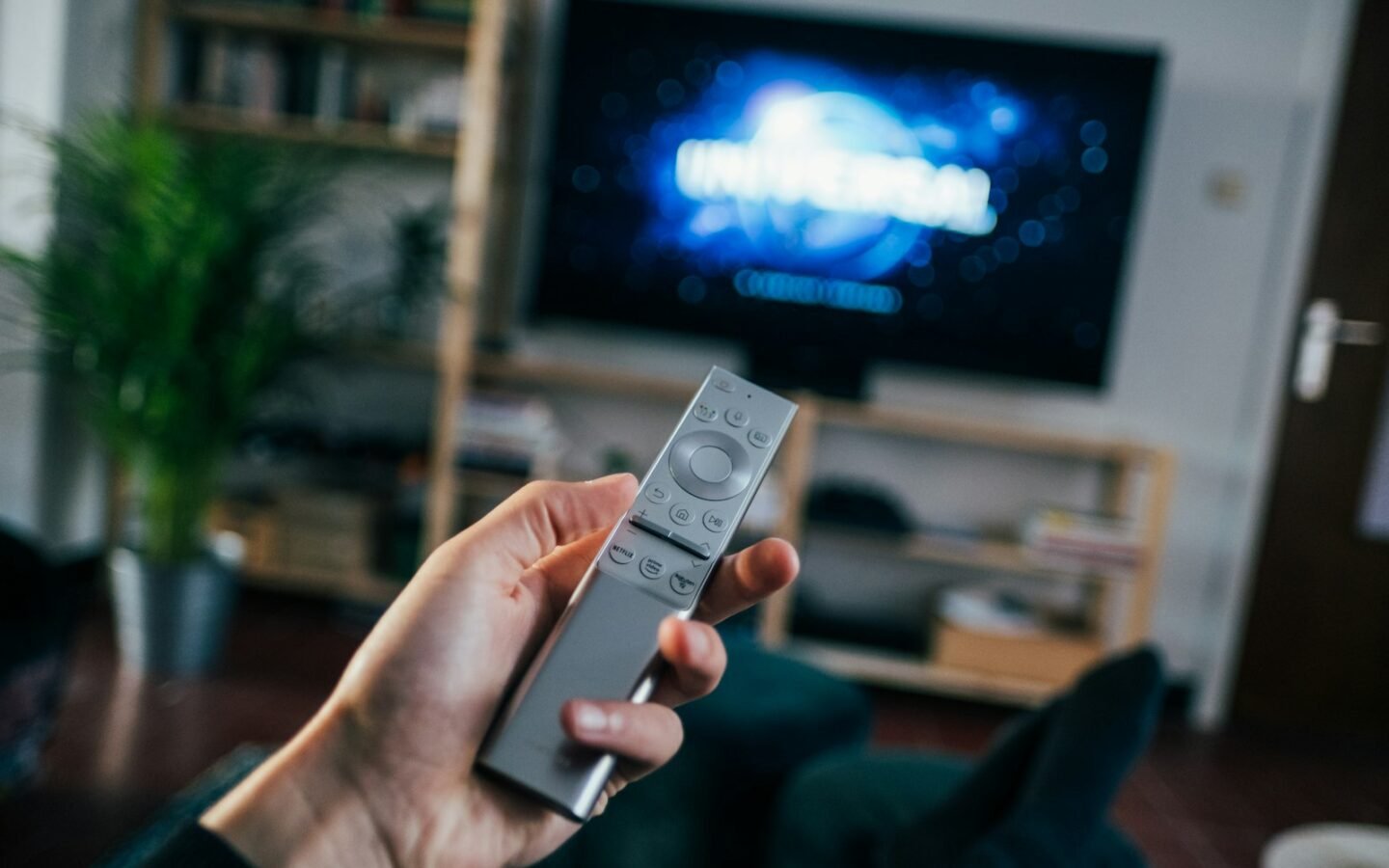
- Press Input or Source on the remote. On some remotes it is an icon of an arrow pointing into a box.
- Highlight the HDMI port the device is plugged into, such as HDMI 1 or HDMI 2, and press OK.
Not every remote has an Input button. In that case the input list is on the home screen:
- Samsung: from the Home screen, press left on the remote, select Connected Devices, then pick the source. With a universal remote, press Source.
- Roku TV: press Home and select the input tile, for example HDMI 1. If a tile is missing, go to Settings, then Inputs or TV inputs, choose the input and select Set up input.
- TCL Google TV: press the Input or Source button, or open Settings and select Inputs.
- Hisense: select the Inputs icon on the Home screen, then the HDMI input.
- Vizio: press the Input button to open the input menu.
Change the HDMI input without a remote
Look for a physical button on the TV itself, usually under the front edge, on the back or on one side. On many sets a single button opens a small menu with an input option: short presses move through the list and a long press selects. Button layouts differ a lot, so check your model’s manual. The TV maker’s phone app is another option if the TV is already on your Wi-Fi network.
How to change the HDMI signal format
Many 4K TVs ship with their HDMI ports in a compatibility mode that works with older devices but limits 4K HDR. The setting that lifts the limit is applied per port, so change it for the port your console, PC or player uses. Each brand has its own name for it.
| Brand | Setting name | Where to find it |
|---|---|---|
| Samsung | Input Signal Plus (HDMI UHD Color on 2018 and older models) | Settings > General > External Device Manager. On newer models: Settings > All Settings > Connection > External Device Manager |
| LG | HDMI Ultra HD Deep Color (HDMI Deep Color on some models) | webOS 26 (2026 models): All Settings > System > External Devices > HDMI Settings. webOS 6.0 to 25: All Settings > General > External Devices (Devices on some models) > HDMI Settings. webOS 5.0 and earlier: All Settings > Picture > Additional Settings |
| Sony | HDMI signal format | Settings > Channels & Inputs > External inputs > HDMI signal format |
| Roku TV | HDMI mode | Settings > Inputs (TV inputs on some models) > select the HDMI input > HDMI mode |
| Hisense | HDMI Format (Standard or Enhanced) | Switch to the HDMI input first, then open the menu and select HDMI Format |
| Vizio | HDMI Mode | Menu > Picture > Input Settings. On older Vizio models the option is called Full UHD Color |
On Sony TVs, use the Enhanced format only with compatible devices, and stay on Standard otherwise.
On a Roku TV, HDMI mode has three choices. Auto suits most devices. Compatibility is for older equipment such as early Blu-ray players. Try Standard if HDR or gaming features are not working.
That warning applies to every brand. On LG TVs, the picture may not display properly if the connected device doesn’t support Deep Color, so turn it off in that case. If the screen goes blank, flickers or shows odd colors after the change, switch the port back to the standard setting.
Check the cable before you blame the setting
The enhanced format sends more data, and an old cable may not carry it. Use a Premium High Speed HDMI cable, rated for 18 Gbps, for high-quality 4K signals. For high-bandwidth 4K at 120Hz or 8K connections, use a certified Ultra High Speed HDMI cable, which supports up to 48 Gbps. The cable category is printed on the packaging and often on the cable jacket. No setting can add a feature the TV port, the cable or the source device does not support.
How to turn HDMI-CEC on or off
HDMI-CEC lets devices control each other over the HDMI cable. It is why a console can wake the TV and switch it to the right input, and why one remote can change soundbar volume. It is also the usual reason a TV jumps to another input on its own. Turn it off if that annoys you.
- Samsung (Anynet+): in External Device Manager, the same menu as Input Signal Plus.
- LG (Simplink): on webOS 6.0 and webOS 22, All Settings > General > Devices > HDMI Settings > Simplink (HDMI-CEC). On 2026 models with webOS 26, go to All Settings > System > Devices > HDMI Settings > Simplink (HDMI-CEC). On webOS 5.0, All Settings > Connection > Device Connection Settings.
- Sony (Bravia Sync): in the External inputs menu.
- Roku TV: Settings > System > Control other devices (CEC). 1-touch play is the option that switches inputs automatically.
- Hisense and TCL Google TV: Settings > Channels & Inputs > Inputs, then HDMI control or Consumer Electronic Control (CEC).
HDMI ARC and eARC audio settings
ARC and eARC send the TV’s sound back down an HDMI cable to a soundbar or receiver. They do not affect which input you are watching. Plug the audio device into the TV port labeled ARC or eARC, enable HDMI-CEC if your TV requires it for ARC, then choose the HDMI audio output in the TV’s sound settings. On a Roku TV that is Settings > Audio > Audio Output.
Fix common HDMI problems
- “No signal” on the HDMI input: confirm the device is on and awake, reseat the cable at both ends, and check that the input you selected matches the port label on the TV. Then try another port or cable.
- Blank screen or flicker after changing the signal format: set the port back to standard. If the picture returns, the cable, the source device or the TV port may not support the selected format.
- Picture but no 4K or HDR: turn on the enhanced format for that port, and check the output resolution on the source device.
- Black screen or a copy-protection (HDCP) message: turn the TV and the device off, unplug both from power for a minute, and reconnect. Connect the device straight to the TV, without a splitter or switch, to test.
- No sound from the soundbar: check that the cable is in the ARC or eARC port and that HDMI-CEC is on.
- TV changes input by itself: turn off HDMI-CEC, or only its automatic input switching option.
Related guides
- How to program a GE universal remote to an LG TV
- Where the Home button is on a Samsung remote
- What to do when an Xfinity remote won’t change channels
Frequently asked questions
Which HDMI setting should my TV be on?
The input should match the port your device is plugged into. For signal format, use the enhanced setting on ports with a 4K HDR device and a suitable cable, and leave the others on standard.
Should my TV be on HDMI 1 or HDMI 2?
Neither is better by number. The TV must be set to whichever port the cable is in. Ports can differ in features, though. On some TVs only certain ports support 4K at 120Hz or eARC, and those are normally labeled next to the socket.
How do I switch between HDMI 1 and HDMI 2?
Press Input or Source, highlight the other HDMI port and press OK. On TVs without that button, pick the input tile on the home screen.
How do I get my TV to show HDMI?
Turn on the connected device, then select its HDMI input. If the input is not in the list, it may be hidden. On a Roku TV, set it up under Settings, then Inputs or TV inputs.
Conclusion
Most HDMI changes come down to four settings: the input you are watching, the signal format for each port, HDMI-CEC control and ARC audio. Start with the Input or Source button. If you need 4K HDR, turn on your brand’s enhanced format for that one port and use a cable rated for it. Go back to the standard setting if the picture drops out. When a menu name here does not match your TV, your model’s manual has the exact path.