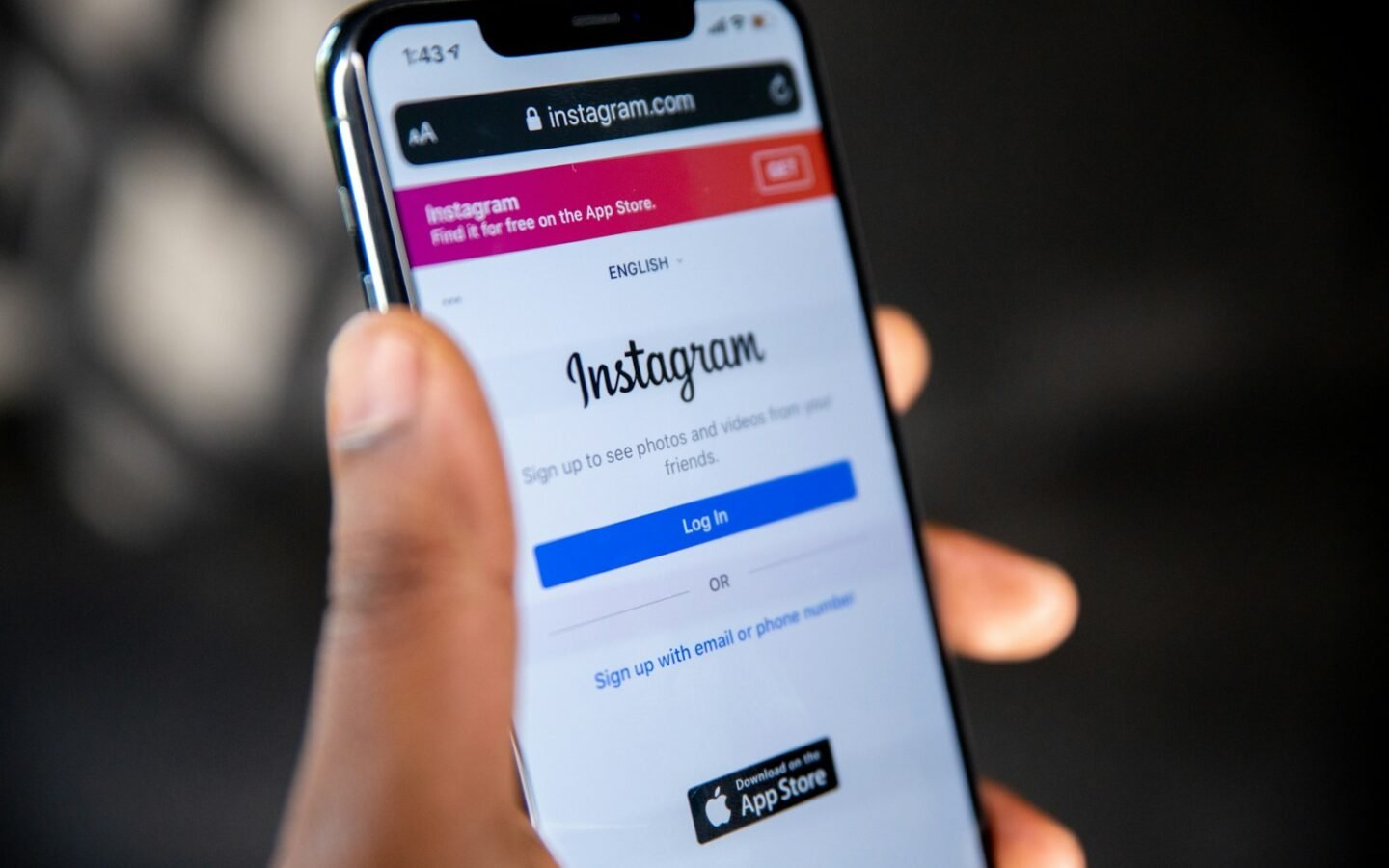
“Please wait a few minutes before you try again” appears when Instagram does not complete a login or another action. Instagram has not publicly explained the exact cause of this message. Stop retrying, wait, then try once from a different connection or from instagram.com. If you cannot get back in, use the “Get help signing in” link on the login screen.
| Where you see the message | What to try first |
|---|---|
| Logging in | Stop retrying, wait, then log in once on another network or in a browser |
| Requesting a login link, a code or a password reset | Stop requesting. Use the most recent link or code, and check your spam folder |
| Changing your username or profile | Wait before trying again, and try a different username |
| Following, liking, commenting or messaging | Pause that activity and disconnect any automation tools |
One limitation up front. Instagram doesn’t officially explain this exact message or say how long it lasts. The causes and fixes below are the ones users most often report, and we did not reproduce the error ourselves.
This guide is part of DeviceGod’s app and account how-to guides.
How to fix “Please wait a few minutes before you try again”
- Stop retrying and wait. Close the app and leave it alone. Repeated attempts are unlikely to help, so avoid retrying continuously.
- Try once on a different connection. Switch from Wi-Fi to mobile data, or the other way around. This is ordinary troubleshooting, not a guaranteed way around the limit.
- Turn off any VPN or proxy, then try once more.
- Try the website. Sign in at instagram.com in a browser. If that works, the problem may involve the app, its session or the original connection.
- Update Instagram and restart your phone. These are the first things to try.
- On Android, clear the app’s cache. Open Settings, Apps, Instagram, Storage, then tap Clear cache. Do not tap Clear storage or Clear data unless you are ready to sign in again, because that signs you out.
- On iPhone, delete and reinstall the app. iOS has no cache button. Your photos and profile information stay saved on Instagram.
- Disconnect third-party tools. If you use apps that automate likes, follows or posting, remove their access and change your password.
If you still can’t log in
Use Instagram’s own recovery flow. Open the app and, on the login screen, tap Get help signing in on Android or Forgot password on iPhone. You can then get a login link by email or text.
Request the link once. Asking for several links or codes in a row is one of the situations where users report seeing this same message. If nothing arrives, check your spam folder before you ask again.
Why Instagram shows this message
Instagram has not published a list of triggers for this exact wording. These are the commonly reported ones:
- Too many attempts in a short time, such as several wrong passwords or repeated logins.
- Repeated requests for login links, codes or password resets.
- Rapid repeated actions, like following or messaging many accounts quickly.
- A VPN, proxy or shared network that many other people also use.
- Third-party apps or automation tools connected to your account.
A related message exists: if inauthentic activity is detected on your account, you may see an error that says “Try again later.” That is a different message, so treat it as context, not proof of what causes this one. The same advice is still worth following: change your password, revoke access for suspicious third-party apps and turn on two-factor authentication.
How long do you have to wait?
There is no official figure. Instagram does not publish a wait time, and no fixed number of minutes or hours applies to everyone. User reports range from a few minutes to a day or more. The safe approach is to stop all attempts, wait a while, then try once. If you are still blocked after a day or two, use the recovery flow above instead of retrying the password.
If the message appears when you change your username
The message can also appear during profile edits, but Instagram has not confirmed whether it shares the same cause as the login error. Wait before trying again and avoid submitting the change over and over. It is separate from two other things: a username that is simply taken, which shows a “not available” message, and Instagram’s own limits on how often a username can be changed. If your new name is rejected for those reasons, waiting will not help.
Is your account banned?
This message alone does not mean a ban. It may indicate a temporary restriction, but the message alone cannot establish your account’s status.
- A disabled account shows a notice at login saying the account has been disabled, with on-screen steps to request a review.
- Restricted features appear in Account Status. If you are still logged in on another device, open Settings and tap Account Status to see removed content and any restrictions.
If you are locked out everywhere, you cannot open Account Status. A clean Account Status also does not rule out a temporary login limit.
If someone else may be trying to get into your account
Unexpected login alerts or password reset emails may indicate that someone else is attempting to access your account. If you received any you did not ask for, follow Instagram’s steps for a hacked account. Once you are in, change your password, turn on two-factor authentication, and review where you are logged in from an authenticated session. If login codes then fail to arrive, see our guide to Instagram two-factor authentication not working.
What not to do
- Do not keep tapping Log in or requesting new codes.
- Do not use a VPN to try to get around the limit.
- Do not pay anyone who promises to “unblock” your account.
- Do not enter your password into a third-party site or app to fix it.
Related guides
Frequently asked questions
Why does Instagram keep telling me to wait a few minutes?
Repeated login attempts or activity from connected apps are possible explanations, but Instagram has not confirmed what triggers this exact message. Stop all attempts, remove third-party tools and wait before one clean try.
Does the message appear on both iPhone and Android?
Users may encounter it on either platform. Instagram has not confirmed the exact cause, so check both account access and app-related problems. Only the app steps differ: clear the cache on Android, reinstall on iPhone.
Will reinstalling Instagram fix it?
It can help if the problem is in the app itself. It will not lift a limit that Instagram has placed on your account or network.
Conclusion
This message may indicate a temporary restriction, but Instagram has not confirmed its exact cause or how long it lasts. A sensible first step is to stop retrying, wait and make one new attempt. Instagram does not guarantee that waiting will resolve the error. Use a different connection or the website for that single attempt. If you are still locked out, use Get help signing in on the login screen. Secure the account with a new password and two-factor authentication once you are back in.