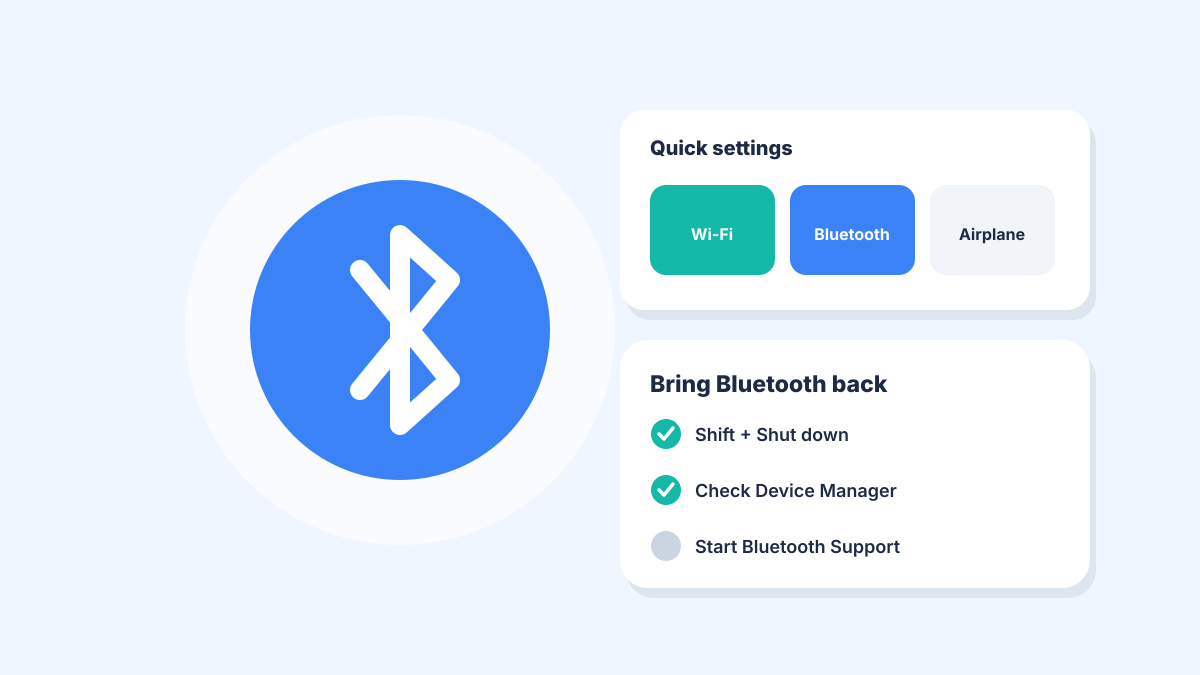
If the Bluetooth toggle has disappeared from Settings or Quick Settings in Windows 11, or it’s there but devices won’t connect, the cause is usually the Bluetooth adapter’s driver or a stuck hardware state rather than your devices. A full shutdown fixes it surprisingly often. Quick fix: hold Shift, select Start > Power > Shut down, wait a minute and turn the PC back on. If Bluetooth is still missing, check Airplane mode, then Device Manager and the Bluetooth Support Service.
This guide is part of DeviceGod’s Windows how-to guides.
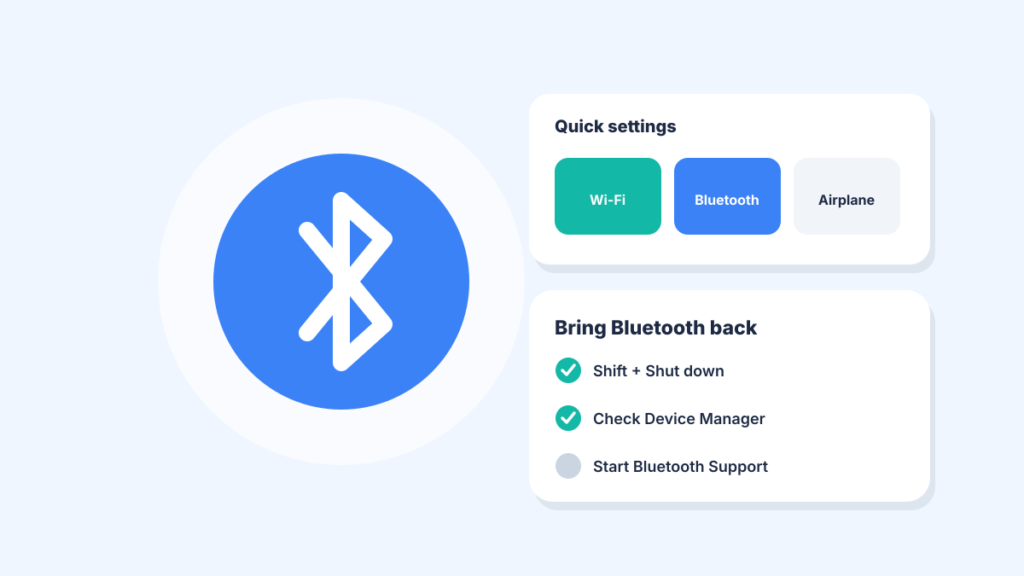
What’s wrong with Bluetooth?
| What you see | Likely cause | Try first |
|---|---|---|
| Bluetooth toggle missing from Settings and Quick Settings | Adapter error or driver problem | Full shutdown, then Device Manager |
| Toggle grayed out | Airplane mode or hardware switch | Turn off Airplane mode |
| Bluetooth on but devices won’t connect | Device not in pairing mode or old pairing | Remove and re-pair |
| Bluetooth icon missing from the taskbar | Icon setting turned off | Turn the icon back on |
| Stopped working after an update | Driver or update bug | Update the driver, reinstall Windows update |
1. Do a full shutdown
A restart doesn’t always reset a stuck Bluetooth adapter, while a full shutdown often clears it.
- Hold the Shift key.
- While holding it, select Start > Power > Shut down.
- Wait about a minute, then turn the PC on.
On a laptop that still has no Bluetooth after this, shut down, unplug the charger and leave it off for a few minutes before trying again.
2. Turn off Airplane mode
Press Windows + A to open Quick Settings and make sure Airplane mode is off. Some laptops also have a wireless key or switch, often an Fn key with a plane or antenna icon, that turns off Bluetooth and Wi-Fi together.
3. Run the Bluetooth troubleshooter
Go to Settings > System > Troubleshoot > Other troubleshooters and select Run next to Bluetooth. It runs in the Get Help app and checks the adapter, drivers and services.
4. Check the adapter in Device Manager
- Right-click Start and choose Device Manager.
- Expand Bluetooth. If you don’t see it, select View > Show hidden devices, and check under Network adapters and Other devices too.
- If the adapter has a down-arrow icon, right-click it and choose Enable device.
- If it shows a yellow warning icon, right-click it and choose Update driver > Search automatically for drivers.
- Still no luck? Uninstall the adapter from its right-click menu and restart. Windows reinstalls the driver at startup.
If there’s no Bluetooth adapter anywhere, even hidden, Windows can’t see the hardware. Install the Bluetooth or wireless driver from your PC maker’s support page, since the Bluetooth and Wi-Fi chip often share one driver package. On a desktop without built-in Bluetooth, you’ll need a USB Bluetooth adapter.
5. Stop Windows from turning off the adapter
- In Device Manager, double-click your Bluetooth adapter.
- Open the Power Management tab, if it has one.
- Uncheck Allow the computer to turn off this device to save power and select OK.
This helps when Bluetooth works after a restart but disappears after sleep.
6. Start the Bluetooth Support Service
- Press Windows + R, type services.msc and press Enter.
- Find Bluetooth Support Service.
- Use its right-click menu to Start it, or Restart it if it’s already running.
- Double-click it and check Startup type. Manual (Trigger Start) is normal, so leave it unless the service was set to Disabled.
7. Turn off Fast startup
Fast startup saves part of the system state when you shut down, which can keep a stuck adapter stuck. Open Control Panel > Hardware and Sound > Power Options > Choose what the power buttons do, select Change settings that are currently unavailable, uncheck Turn on fast startup and save. Then shut down and turn the PC on again.
8. Install updates, or reinstall the current version
Some Windows 11 updates have caused Bluetooth problems that Microsoft later fixed, so install anything waiting in Settings > Windows Update, including optional driver updates under Advanced options > Optional updates. If Bluetooth disappeared right after an update, first try a newer driver from your PC maker, or Roll Back Driver on the adapter’s Driver tab in Device Manager. If that doesn’t help, Settings > System > Recovery > Reinstall now (under Fix problems using Windows Update) repairs Windows system files while keeping your files and apps. It doesn’t remove the update itself.
If Bluetooth is on but a device won’t connect
- Put the device in pairing mode. Most earbuds and headphones need a long press on the button or case.
- Remove the device in Settings > Bluetooth & devices > Devices, then add it again.
- Charge the device. Low batteries cause failed pairing and dropouts.
- Make sure it isn’t still connected to your phone.
Our Bluetooth earbuds pairing guide explains pairing mode for popular brands. For a wireless keyboard or mouse, see how to check your mouse battery level. If headphones connect but play no sound, see headphones not detected on Windows 11.
How to get the Bluetooth icon back on the taskbar
Go to Settings > Bluetooth & devices > Devices, scroll down and select More Bluetooth settings. On the Options tab, check Show the Bluetooth icon in the notification area. If the Bluetooth button is missing from Quick Settings, press Windows + A and check the full list of tiles there. The way you add or rearrange tiles differs between Windows 11 versions.
Frequently asked questions
Why is my Bluetooth not visible in Windows 11?
The adapter has usually hit an error, lost its driver or been turned off by Airplane mode. A full shutdown with Shift held down, then checking Device Manager, fixes most cases.
How do I force Bluetooth on in Windows 11?
Turn off Airplane mode, enable the adapter in Device Manager and start the Bluetooth Support Service. If the toggle still won’t appear, reinstall the Bluetooth driver.
Why is my PC not detecting Bluetooth devices?
Make sure the device is in pairing mode, charged and not connected to another phone or computer. Remove any old pairing and add it again.
How do I reinstall Bluetooth on Windows 11?
In Device Manager, right-click the Bluetooth adapter, choose Uninstall device and restart. For a clean install, download the driver from your PC maker first.
Why did Bluetooth disappear after a Windows update?
The update may have brought a driver that doesn’t suit your hardware, or a bug. Install the latest updates and drivers, or use Reinstall now in Recovery settings.
Our last pass through these steps was on November 21, 2026, using Windows 11 25H2. Device Manager names for Bluetooth adapters vary by manufacturer.