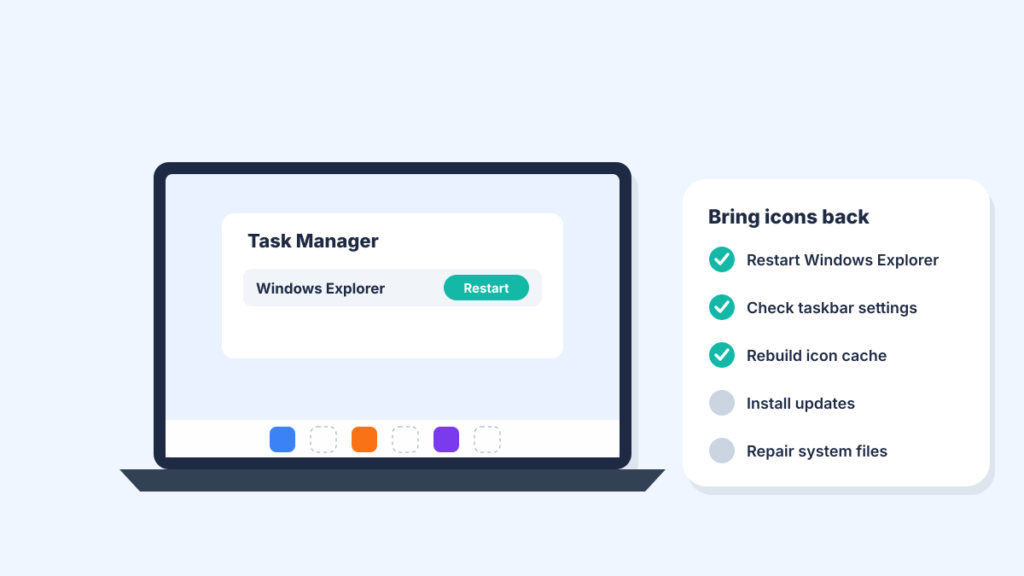
Taskbar icons usually go missing on Windows 11 because File Explorer, which draws the taskbar, has hung or because a corrupted icon cache is showing blank spaces. Less often, a setting hid them or a recent update broke something. The quickest fix is to restart Windows Explorer: press Ctrl + Shift + Esc to open Task Manager, locate Windows Explorer in the list and select Restart from its right-click menu. If the icons come back and then disappear again, work through the fixes below in order.
This guide is part of DeviceGod’s Windows how-to guides.
Which icons are missing?
| What you see | Likely cause | Start with |
|---|---|---|
| Whole taskbar is empty or frozen | Explorer stopped responding | Restart Windows Explorer |
| Pinned apps show blank squares | Corrupted icon cache | Rebuild the icon cache |
| Clock, Wi-Fi and volume icons gone | Explorer or update glitch | Restart Explorer, check updates |
| One app’s tray icon is hidden | It’s in the overflow menu | Turn it on in taskbar settings |
| Taskbar disappears until you hover | Auto-hide is on | Turn off auto-hide |
1. Restart Windows Explorer
Explorer runs the taskbar, Start menu and desktop, so restarting it redraws all of them without a full reboot.
- Press Ctrl + Shift + Esc to open Task Manager.
- On the Processes page, find Windows Explorer.
- Open its right-click menu and pick Restart. The screen may flicker for a second.
If Windows Explorer isn’t listed, it isn’t running, and the taskbar will usually be gone. In Task Manager, choose Run new task, type explorer.exe and press Enter.
2. Restart the PC
A full restart clears more than an Explorer restart does, including stuck background services. Use Start > Power > Restart, or press Ctrl + Alt + Delete and use the power button in the corner if Start won’t open.
3. Check your taskbar settings
Right-click an empty spot on the taskbar and choose Taskbar settings.
- Taskbar items: turn on the built-in buttons you want, such as Search, Task view and Widgets.
- Other system tray icons: turn on apps like OneDrive or your antivirus so they show next to the clock instead of in the hidden overflow menu.
- Taskbar behaviors: turn off Automatically hide the taskbar if the whole bar vanishes until you move the mouse to the bottom.
4. Rebuild the icon cache
Windows saves small copies of app icons in a cache so it doesn’t have to load them every time. When that cache gets corrupted, pinned apps show up as blank or generic icons. Deleting the cache makes Windows build a fresh one.
- Save your work and close open apps.
- Open Task Manager, right-click Windows Explorer and choose End task. The taskbar will disappear, which is expected.
- In Task Manager, choose Run new task, type cmd and press Enter.
- Type these commands, pressing Enter after each one:
cd /d %localappdata%\Microsoft\Windows\Explorerdel iconcache* /a - Choose Run new task again, type explorer.exe and press Enter.
If some files are in use and won’t delete, restart the PC and run the steps again before opening any apps.
5. Unpin and pin the app again
If only one or two pinned apps are blank, right-click the icon and choose Unpin from taskbar. Then find the app in Start, right-click it and choose Pin to taskbar. Our guide to pinning Gmail to the taskbar shows how to pin a website the same way.
6. Install updates, or repair a bad one
Taskbar bugs have shown up after some Windows 11 updates, and Microsoft usually fixes them in a later release.
- Go to Settings > Windows Update and select Check for updates.
- If the problem started right after an update, go to Settings > System > Recovery and, under Fix problems using Windows Update, select Reinstall now. This reinstalls your current version of Windows and keeps your files and apps.
7. Repair system files
Corrupted system files can break the taskbar. Right-click Start, choose Terminal (Admin) and run these two commands one at a time. Each can take several minutes.
DISM /Online /Cleanup-Image /RestoreHealth
sfc /scannow
Restart when both finish.
8. Test a new user account
If the taskbar works in a fresh account, your own profile has a problem. Add a test account in Settings > Accounts > Other users, sign in to it and check the taskbar. If it works there, you can move your files over to a new account, or keep trying the repair steps above.
Frequently asked questions
How do I get my icons back on the taskbar?
Restart Windows Explorer from Task Manager first. If icons are blank rather than missing, rebuild the icon cache. If only tray icons are missing, turn them on in Taskbar settings under Other system tray icons.
Why are my Windows 11 taskbar icons disappearing?
Usually because Explorer hung, the icon cache is corrupted or an update caused a glitch. Auto-hide can also make the whole taskbar seem to disappear.
How do I fix the Windows 11 taskbar glitch?
Restart Windows Explorer, install pending updates and, if it started after an update, use Reinstall now under Settings > System > Recovery.
How do I add icons to the taskbar in Windows 11?
Open the app from Start, right-click its taskbar icon and choose Pin to taskbar. For built-in buttons like Search or Task view, use Taskbar settings > Taskbar items.
Why are my taskbar icons blank or white squares?
Usually a corrupted icon cache, though a broken shortcut or an Explorer glitch can also do it. Rebuild the cache, restart Explorer, or unpin and re-pin the app.
These steps were last tested on November 21, 2026, on Windows 11 version 25H2. Menu names may differ slightly in older versions.