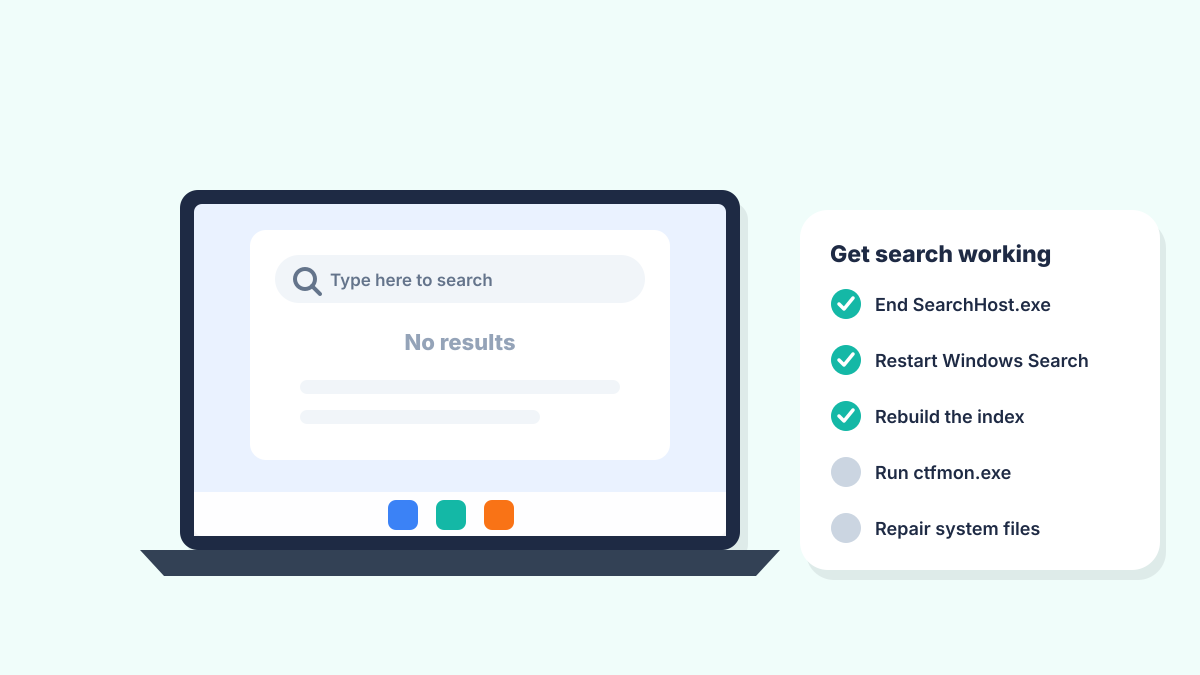
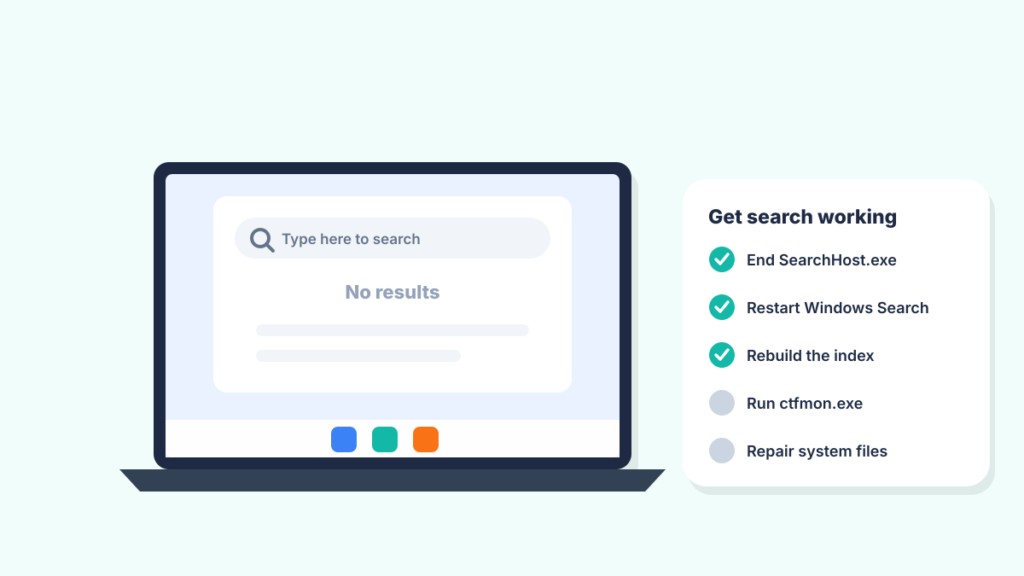
When Windows 11 search stops working, you click the search box and nothing happens, you can’t type, or it shows a blank panel or no results for apps you know are installed. Most of the time a search process has frozen, and restarting it fixes the problem in seconds. If results are missing or out of date, the search index usually needs rebuilding. Quick fix: open Task Manager with Ctrl + Shift + Esc, go to Details, right-click SearchHost.exe and choose End task, then click Search again. It restarts automatically.
This guide is part of DeviceGod’s Windows how-to guides.
What kind of search problem do you have?
| Symptom | Likely cause | Try first |
|---|---|---|
| Search panel won’t open | Search process frozen | End SearchHost.exe, restart Explorer |
| You can’t type in the search box | Text input service stuck | Restart the PC, check ctfmon |
| Blank or white search panel | Search app glitch | End SearchHost.exe, update Windows |
| Apps or files missing from results | Index incomplete or corrupted | Rebuild the index |
| Search box missing from the taskbar | Hidden in settings | Turn it back on in Taskbar settings |
1. Restart the search process
- Press Ctrl + Shift + Esc to open Task Manager.
- Select Details on the left.
- Find SearchHost.exe, right-click it and choose End task.
- Click the search box or press Windows + S. Windows starts a fresh copy.
While you’re in Task Manager, restarting Windows Explorer from the Processes page can also help, since Explorer runs the taskbar the search box sits on.
2. Restart the PC
If the search panel still won’t open, restart from Start > Power > Restart. A restart clears stuck services that ending a single process doesn’t reach.
3. Fix “can’t type in the search box”
If the panel opens but nothing appears when you type, the service that handles keyboard input for modern apps may not be running.
- Press Windows + R, type ctfmon.exe and press Enter. Nothing visible will open.
- Try typing in search again.
If that works but the problem comes back after each restart, run the system file repair in step 7. Also check that your keyboard works in other apps. If it doesn’t, see our guide to a laptop keyboard not working on Windows 11.
4. Restart the Windows Search service
The Windows Search service builds and maintains the index that search results come from.
- Press Windows + R, type services.msc and press Enter.
- Find Windows Search, right-click it and choose Restart. If it isn’t running, choose Start.
- Open its properties and confirm Startup type is set to Automatic (Delayed Start) or Automatic.
5. Rebuild the search index
If search opens but can’t find files, the index may be incomplete or damaged. Missing apps or settings can also come from a broader search glitch, so try steps 1 and 4 first.
- Go to Settings > Privacy & security > Searching Windows.
- Select Advanced indexing options.
- Select Advanced, then Rebuild, and confirm.
Rebuilding can take from a few minutes to a few hours depending on how many files you have, and results stay incomplete until it finishes. On the Searching Windows page, you can also choose Enhanced if you want search to cover your whole PC instead of just your libraries and desktop.
6. Bring back a missing search box
If the search box or icon is gone from the taskbar, right-click an empty spot on the taskbar, choose Taskbar settings and set Search to Search box, Search icon and label or Search icon only. You can always press Windows + S to search, even when the box is hidden.
7. Repair system files
Damaged system files can break search too. Open an administrator terminal by right-clicking Start and selecting Terminal (Admin), then enter:
DISM /Online /Cleanup-Image /RestoreHealth
sfc /scannow
Restart the PC when both finish.
8. Update or reinstall Windows
Search bugs are often fixed in Windows updates, so check Settings > Windows Update. When search broke right after an update and nothing else has worked, the Reinstall now button (in Settings > System > Recovery, in the Windows Update repair section) refreshes Windows itself while leaving your files and apps alone.
Frequently asked questions
Why is my PC not letting me search?
The search process has usually frozen. End SearchHost.exe in Task Manager, or restart the PC. If you can open search but not type, run ctfmon.exe.
How do I fix the Windows Search issue?
Restart the search process and the Windows Search service. If file results are missing or out of date, rebuild the index. If that fails, repair system files with DISM and SFC.
Why can’t I type in my Windows 11 search bar?
The text input service may have stopped. Press Windows + R, run ctfmon.exe and try again. A restart also fixes it in most cases.
Does Windows 11 have a search bar?
Yes. It sits on the taskbar next to Start. If you don’t see it, turn it on in Taskbar settings, or press Windows + S.
Why does Windows search not find my files?
The file may be in a folder that isn’t indexed, or the index is incomplete. Switch to Enhanced in Searching Windows settings, or rebuild the index.
Checked on a Windows 11 25H2 PC on November 21, 2026. Earlier builds of Windows 11 may label a few settings differently.