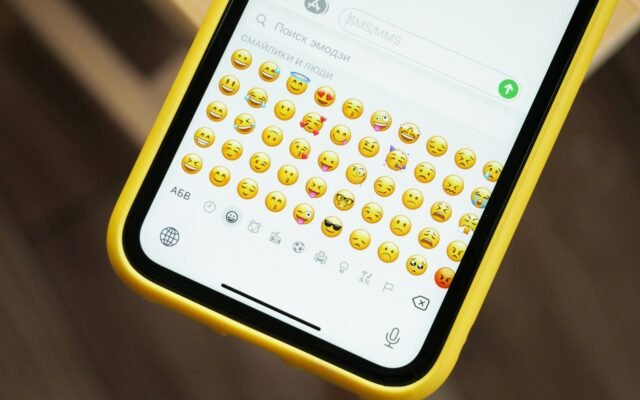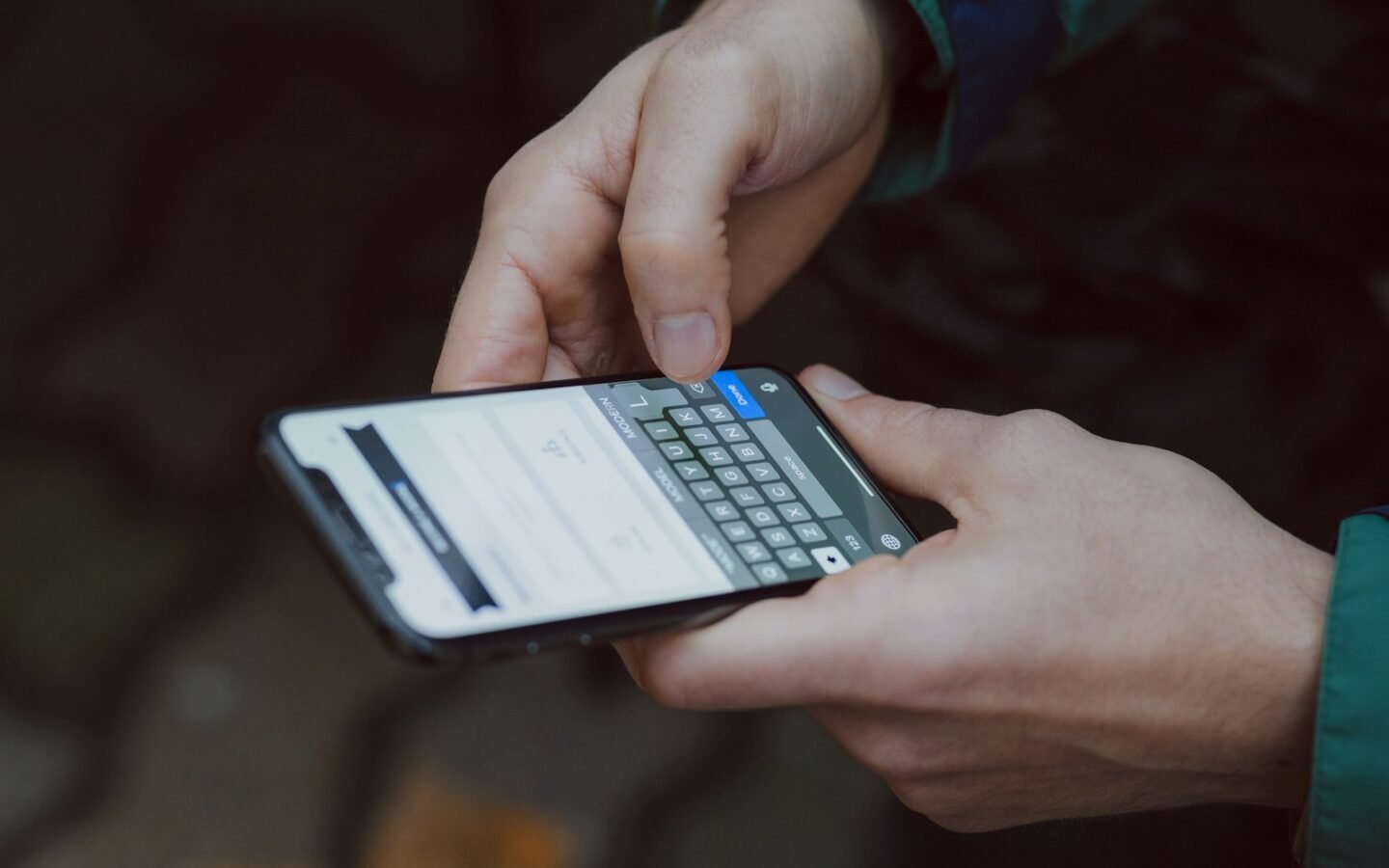
The clipboard on your phone is not an app you open from the Home Screen. It is a temporary holding area that the phone’s system keeps for whatever you last copied, and the keyboard is where you get to see it. On most Android phones, tap a text box to bring up the keyboard, then tap the Clipboard icon in the row above the keys. On an iPhone there is no clipboard screen at all: the phone holds one copied item, and you see it by touching and holding in a text field and tapping Paste.
The Gboard steps follow Google’s Gboard Help page Copy & paste sections of text with Gboard, checked on November 27, 2026. Keyboards differ between phone makers, so the icon may sit in a slightly different place on your phone than described here.
This guide is part of DeviceGod’s Android how-to guides.
Find the clipboard on an Android phone with Gboard
Gboard is the Google keyboard that comes on Pixel phones and many other Android phones.
- Open any app where you can type, such as Messages or Notes.
- Tap the text box so the keyboard appears.
- Tap Clipboard at the top of the keyboard. If you do not see it, tap the menu icon with four squares at the left of the toolbar and look for Clipboard there.
- Turn the clipboard on if Gboard asks. Until it is on, Gboard does not keep a history.
- Tap an item to paste it into the text box.
- Tap Back to return to the keys.
Gboard’s own clipboard screen explains its rules: touch and hold a clip to pin it, and unpinned clips are deleted after one hour. Google’s help page also says the clipboard clears its history shortly after you copy, so pin anything you want to keep, such as an address you paste often.
Where the clipboard is on each kind of phone
| Phone or keyboard | Where to find the clipboard | Keeps a history? |
|---|---|---|
| Android with Gboard | Clipboard icon in the toolbar above the keys | Yes, once turned on. Unpinned clips are removed after about an hour |
| Samsung Galaxy with Samsung Keyboard | Clipboard icon in the keyboard toolbar, sometimes behind the three-dot menu | Yes |
| Other Android keyboards, such as SwiftKey | Clipboard icon in that keyboard’s toolbar | Usually, depending on the keyboard’s settings |
| iPhone | No clipboard screen. Touch and hold in a text field, then tap Paste | No. One item at a time |
Find the clipboard on a Samsung phone
- Tap a text box to open the Samsung Keyboard.
- Look at the toolbar above the keys for the Clipboard icon.
- If it is not there, tap the three dots at the right end of the toolbar and choose Clipboard from the extra options.
- Tap an item to paste it. Touch and hold an item for options such as pinning or deleting it.
If the toolbar itself is missing, open Settings, General management, Samsung Keyboard settings, and turn on Keyboard toolbar. Menu names can vary a little between One UI versions.
Find the clipboard on an iPhone
iOS does not have a clipboard viewer or a clipboard history. It keeps only the most recent thing you copied.
- Open an app where you can type, such as Notes.
- Touch and hold in an empty spot, then lift your finger.
- Tap Paste. Whatever is on the clipboard appears.
If you want a list of things you have copied, save them in Notes as you go. Copying something new replaces the previous item. If you use a Mac or iPad signed in to the same Apple Account, Universal Clipboard can also paste something you copied on one device onto another for a short time. It needs Wi-Fi, Bluetooth and Handoff turned on, with the devices near each other.
What “copied to clipboard” means
When your phone says Copied to clipboard, the text, link or image you selected has been placed in the phone’s temporary memory, ready to be pasted somewhere else. Nothing has been sent or saved to a file. It stays there until it is replaced by the next thing you copy or cleared automatically, which depends on the phone’s system and the keyboard. Android 13 and later clear the system clipboard by themselves after a while.
On Android 13 and later, a small preview of what you copied also appears in the bottom corner of the screen for a few seconds. Tap it to edit the text before pasting, or ignore it and it disappears. That preview is separate from the keyboard’s clipboard history, and Android can hide sensitive content, such as a password, from it.
See, pin and delete clipboard items on Android
- See everything saved. Open the keyboard and tap Clipboard. Recent clips are at the top and pinned clips are grouped together.
- Pin an item. In Gboard, touch and hold the clip and choose Pin. Pinned clips are not removed after an hour.
- Delete an item. Touch and hold the clip and choose Delete, or use the edit (pencil) icon to select several clips and delete them together.
- Turn the clipboard history off. Use the switch on Gboard’s clipboard screen if you prefer that nothing is kept. Normal copy and paste still work.
Clipboard icon missing or nothing is saved
- The keyboard is not open. The clipboard list is shown by the keyboard, so tap a text field first.
- The toolbar is hidden. In Gboard, tap the arrow or the four-square menu at the left of the suggestion row to bring the toolbar back.
- The clipboard is switched off. Open it once and turn it on. Only items copied after that are saved.
- More than an hour has passed. Gboard removes unpinned clips after one hour. Clips that have expired or been deleted generally cannot be recovered.
- You are using a different keyboard. Keyboards that offer a clipboard keep their own history on top of the system clipboard. If you switched keyboards, the old history does not carry over.
- The app blocks copying. Some banking and password apps prevent their content from being stored in the clipboard history.
Is the clipboard private?
Treat the clipboard as short-term and not secret. Anything you copy, including passwords and card numbers, can be pasted by whoever picks up the unlocked phone, and apps can read the clipboard when you paste into them. Newer versions of Android and iOS show a notice when an app reads the clipboard. After copying something sensitive, copy a harmless word to overwrite the system clipboard, and delete the matching clip from the keyboard’s clipboard history. Deleting the clip alone may not clear the system clipboard, so do both.
Related guides
- Where the spam folder is on an Android phone
- How to enable the camera on an Android phone
- How to make emojis bigger
Frequently asked questions
How do I find things saved to my clipboard?
On Android, open the keyboard and tap the Clipboard icon above the keys. On iPhone, touch and hold in a text field and tap Paste to see the one item it holds.
When it says copied to clipboard, where does it go?
It goes into the phone’s temporary memory. On Android it also appears in the keyboard’s clipboard list if that feature is on.
Where is the clipboard on my Samsung phone?
In the Samsung Keyboard toolbar. Tap a text box, then tap the Clipboard icon, or the three dots at the end of the toolbar if the icon is not showing.
How long do things stay on the clipboard?
In Gboard, unpinned clips are deleted after one hour and pinned clips stay. On iPhone, copying something new normally replaces the previous item, and some apps set their copied items to expire.
Does the iPhone have a clipboard history?
No. iOS stores a single copied item and has no built-in history. Save things you need again in Notes.
How do I clear my clipboard?
On Android, open the keyboard’s clipboard, touch and hold a clip, and choose Delete. On iPhone there is no clear button, so copy a blank space or any harmless word to replace what was there.
Conclusion
The clipboard is a system feature that you reach through the keyboard, not a separate app. On Android, tap a text box and then the Clipboard icon above the keys to see, paste, pin or delete what you have copied, remembering that Gboard removes unpinned clips after an hour. On iPhone there is nothing to open: paste to see the single item the phone is holding.