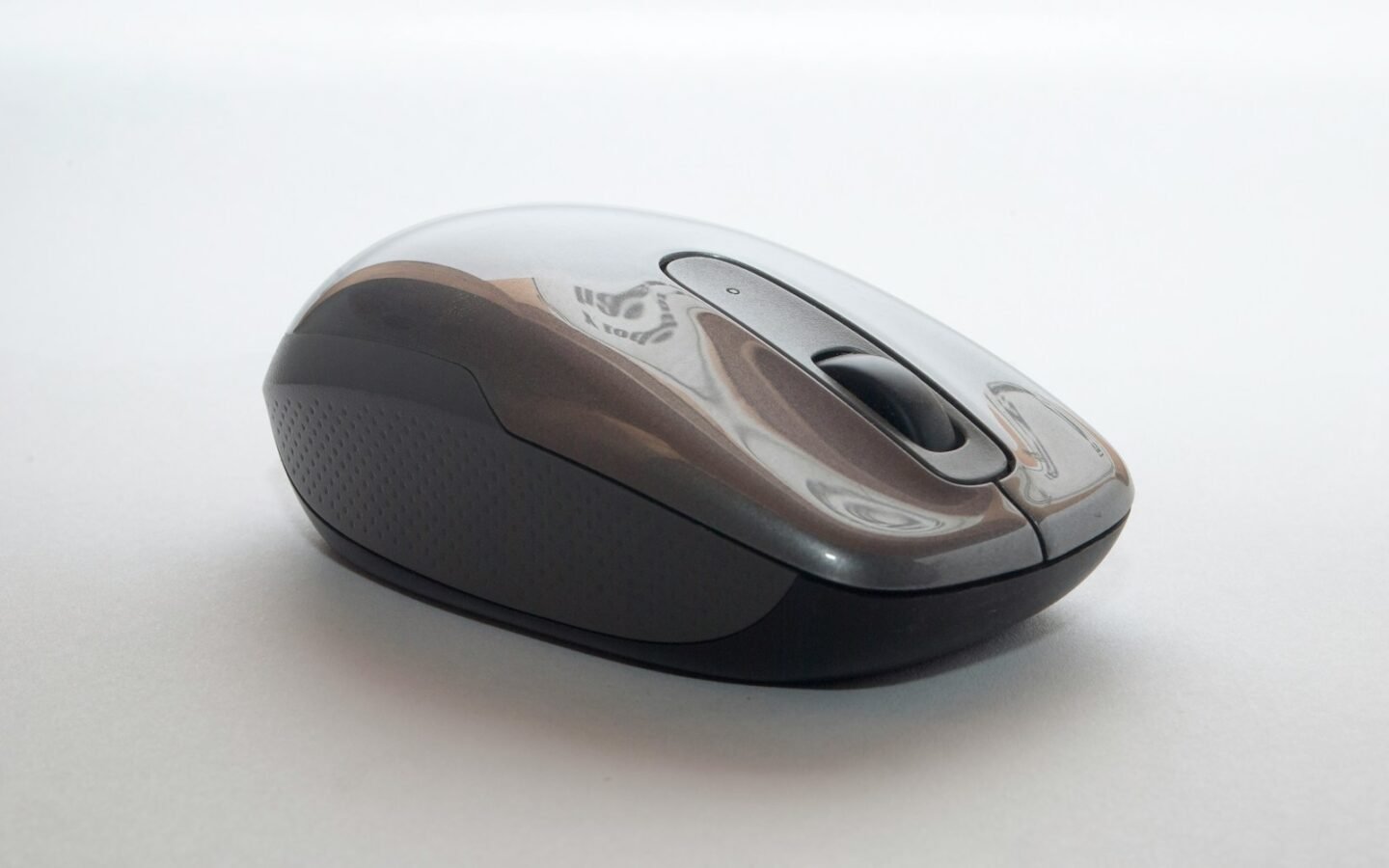
The quickest way to check your mouse battery level depends on how the mouse connects. For a Bluetooth mouse on Windows 11, open Settings > Bluetooth & devices, and the battery percentage appears next to the mouse’s name, if the mouse reports it. For a Bluetooth mouse on a Mac, open System Settings > Bluetooth or the Bluetooth menu in Control Center. For a mouse that uses a USB receiver, Windows and macOS usually can’t show the battery level, so use the maker’s app, such as Logi Options+, Razer Synapse or Logitech G HUB, or check the light on the mouse.
This guide is part of DeviceGod’s Windows how-to guides.
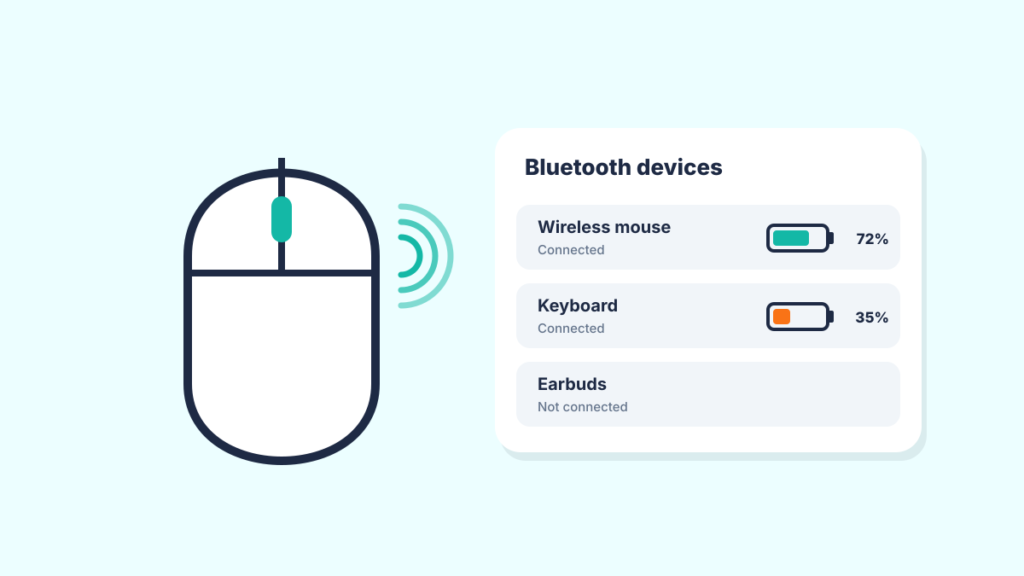
Where to find your mouse battery level
| Your setup | Where to look |
|---|---|
| Bluetooth mouse on Windows 11 | Settings > Bluetooth & devices (or > Devices) |
| Bluetooth mouse on Windows 10 | Settings > Devices > Bluetooth & other devices |
| Magic Mouse or other Bluetooth mouse on a Mac | Control Center > Bluetooth, or System Settings > Bluetooth |
| Logitech mouse with a USB receiver | Logi Options+ (or G HUB for Logitech G gaming mice) |
| Razer, Corsair or SteelSeries mouse | The brand’s app: Razer Synapse, iCUE or SteelSeries GG |
| Basic mouse with no app | The status light on the mouse |
Check mouse battery on Windows 11
- Press Windows key + I to open Settings.
- Select Bluetooth & devices. Connected Bluetooth devices appear at the top, and supported ones show a battery icon and percentage.
- For a full list, select Devices and look under Mouse, keyboard & pen.
If you see the mouse but no percentage, the mouse doesn’t send battery information to Windows. That’s common, and it doesn’t mean anything is wrong.
Check mouse battery on Windows 10
- Open Settings and choose Devices.
- Select Bluetooth & other devices.
- Find your mouse under Mouse, keyboard, & pen. A battery percentage appears next to it when the mouse supports it.
Check mouse battery on a Mac
- Control Center: click Control Center in the menu bar, then click Bluetooth. Connected Apple devices, like a Magic Mouse, show a battery level.
- System Settings: open System Settings > Bluetooth and look next to the mouse’s name, or click the info button for details.
- Low-battery alerts: macOS also shows a notification when a Magic Mouse is running low.
Check a Logitech mouse battery
Logitech mice that connect with a USB receiver don’t report battery levels to Windows or macOS directly. Install Logi Options+ from Logitech’s website, open it, and select your mouse. The battery level appears on the device card. Gaming mice in the Logitech G range use the G HUB app instead.
Many Logitech mice also have a small light on top or underneath. Green usually means the battery is fine, and red or a blinking light means it’s time to charge or change the batteries. Check your model’s manual, since the colors vary.
Check a gaming mouse battery
Wireless gaming mice usually show their charge in the company’s app:
- Razer: Razer Synapse shows the battery level for supported wireless mice, and some show it in the system tray.
- Corsair: iCUE shows the battery level on the device’s page.
- SteelSeries: SteelSeries GG shows it under the device in Engine.
Signs your mouse battery is dying
If you can’t see a percentage, watch for these signs:
- The cursor lags, stutters or jumps across the screen.
- Clicks don’t register every time.
- The mouse disconnects and reconnects, or the computer stops detecting it.
- The status light blinks or turns red.
These can also come from interference or a dirty sensor, so try fresh batteries first. If the problem continues, move the receiver closer and wipe the sensor on the bottom of the mouse.
How long does a wireless mouse battery last?
It varies widely by model and use. Many AA-powered office mice run for many months or even longer on one set of batteries, while rechargeable gaming mice with lighting may need charging every few days to a few weeks. Turning off RGB lighting and using the mouse’s power switch when you’re done both help.
Related Windows guides
- How to connect a Logitech K540 keyboard
- How to fix Lenovo laptop fan noise
- How to see all open windows
Frequently asked questions
How do I check my Logitech mouse battery level?
Install Logi Options+, open it and select the mouse to see its battery level. If it’s connected by Bluetooth, Windows 11 may also show it in Settings > Bluetooth & devices.
Why doesn’t Windows show my mouse battery percentage?
Windows can only show the battery level for Bluetooth devices that report it. Mice using a USB receiver usually need the manufacturer’s app instead.
How do I know if my mouse is dying?
Lagging, jumping cursors, missed clicks and random disconnects are the usual signs of a low battery. Fresh batteries or a full charge should fix them.
Can I check my mouse battery without software?
Yes, for many models. Look at the status light on the mouse, or, for a Bluetooth mouse, check your computer’s Bluetooth settings.
Does a wireless mouse use battery when the computer is off?
A little, unless you turn it off. Most mice go to sleep after a few minutes, but switching them off saves the most power.
We last checked these steps on November 20, 2026, in Windows 11, Windows 10 and macOS, using each system’s current Settings layout. App names and screens can change with updates.