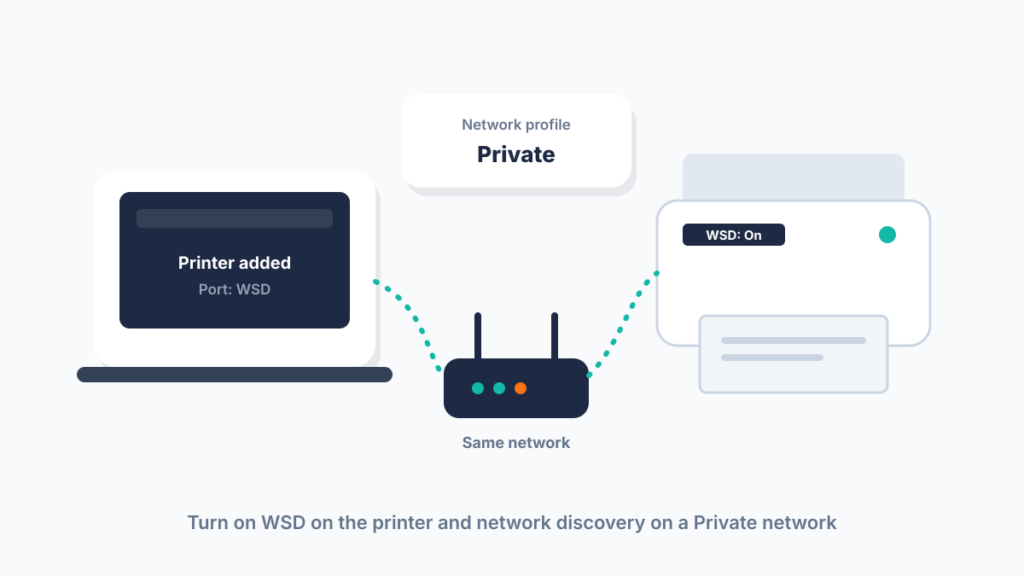
WSD stands for Web Services on Devices, a Microsoft technology that lets Windows find printers and scanners on your network automatically, without typing an IP address. To enable WSD, you need it turned on in two places: on the printer or scanner (in its network settings or web control page) and on the Windows PC (network discovery turned on, a Private network profile and the Function Discovery services not disabled). Then add the device in Settings > Bluetooth & devices > Printers & scanners.
This guide is part of DeviceGod’s Windows how-to guides.
What WSD does
With WSD, a network printer or scanner announces itself on your local network. Windows hears that announcement, lists the device in Printers & scanners, and installs a driver. It also enables WSD scanning, so you can start a scan from the printer’s control panel and send it straight to your computer.
WSD uses a printer port in Windows called a WSD port. Discovery happens over the WS-Discovery protocol on port 3702, which is why firewalls and network settings matter.
Step 1: Turn on WSD on the printer or scanner
Most network printers have WSD on by default, but it may be off on some business models. The setting is usually in one of two places:
- On the printer’s control panel: look under Settings, Network, or Protocols for WSD, Web Services or DPWS.
- In the printer’s web page: type the printer’s IP address into a browser on the same network, sign in as administrator if asked, and look under Network or Protocols. Turn on WSD, plus WSD Scan if you want to scan to the computer, and multicast discovery if it’s listed.
Restart the printer after changing the setting. Printer menus vary by brand, so check your model’s manual if you can’t find it.
Step 2: Turn on network discovery in Windows
- Open Settings > Network & internet and select Wi-Fi or Ethernet.
- Select your network and set Network profile type to Private network. Only do this on a network you trust, such as at home or work.
- Go back to Network & internet > Advanced network settings > Advanced sharing settings.
- Under Private networks, turn on Network discovery.
On Windows 10, open Control Panel > Network and Sharing Center > Change advanced sharing settings and turn on network discovery for the private profile.
Step 3: Make sure the discovery services aren’t disabled
- Press Windows key + R, type services.msc and press Enter.
- Find Function Discovery Provider Host. Double-click it and make sure Startup type isn’t set to Disabled. Its default is Manual (Trigger Start), which is fine, so you don’t need to change it to Automatic.
- Check that Function Discovery Resource Publication isn’t disabled either. It mainly lets your PC announce itself on the network, so it rarely needs changes just to find a WSD printer.
- Restart the computer.
Step 4: Add the printer or scanner with WSD
- Open Settings > Bluetooth & devices > Printers & scanners.
- Select Add device and wait while Windows searches the network.
- When your printer appears, select Add device next to it. Windows picks a supported connection, which may be WSD, IPP or another protocol. To confirm, open the printer’s Printer properties > Ports tab and look for a WSD port.
To confirm it’s using WSD, open the printer in Printers & scanners, select Printer properties, and check the Ports tab for a port that starts with “WSD.”
How to scan to your computer with WSD
- Make sure WSD Scan is on in the printer’s settings and the scanner is added in Windows.
- On the printer’s control panel, choose Scan, then Computer (WSD) or WSD Scan, depending on the model.
- Pick your computer from the list and start the scan. Windows saves it, usually in the Documents or Pictures folder, or opens a prompt asking what to do with it.
You can also scan from the PC with the Windows Scan app or Windows Fax and Scan.
If the printer doesn’t appear
- Same network: the PC and printer must be on the same network, not a guest Wi-Fi network.
- Firewall: make sure the Network Discovery rule is allowed in Windows Defender Firewall. Third-party security software can also block WS-Discovery.
- Router settings: some routers block multicast traffic between Wi-Fi and wired devices. Restart the router, and check for an option such as AP isolation or client isolation.
- Use TCP/IP instead: if WSD won’t cooperate, add the printer by its IP address using a Standard TCP/IP port. It’s often more stable, especially for printers you use every day.
WSD vs. TCP/IP: which should you use?
| WSD | Standard TCP/IP | |
|---|---|---|
| Setup | Automatic discovery, no IP address needed | You enter the printer’s IP address |
| Scan to PC from the printer panel | Supported on WSD scanners | Needs the maker’s scan software |
| Reliability | Can drop if discovery is blocked | Very stable if the printer’s IP address doesn’t change |
| Best for | Home networks and quick setup | Offices and printers with a fixed IP address |
Related Windows guides
- How to allow a website through the Windows firewall
- Where user profiles are stored in the registry
- How to check your mouse battery level
Frequently asked questions
What is WSD on my scanner?
It’s Web Services on Devices, which lets Windows find the scanner on your network and lets you send scans from the scanner’s panel to your computer.
What is a WSD port?
It’s the type of printer port Windows uses for devices it discovers through WSD. You’ll see it on the Ports tab in printer properties.
How do I disable WSD on my HP printer?
Open the printer’s built-in web page by typing its IP address into a browser, then look for WSD, WS-Discovery or Microsoft Web Services under the networking or protocol settings and turn it off. Don’t confuse this with HP’s Web Services, which is a separate internet feature for ePrint. Menu names vary by model.
Is WSD safe to use?
On a trusted private network, yes. Keep network discovery off on public networks, such as hotel or café Wi-Fi.
Does WSD work on a Mac?
No. WSD is a Windows technology. Macs find network printers using AirPrint and Bonjour instead.
We last checked these steps on November 20, 2026, in Windows 11 and Windows 10. Printer menus differ by brand and model, so check your printer’s manual if a setting name doesn’t match.