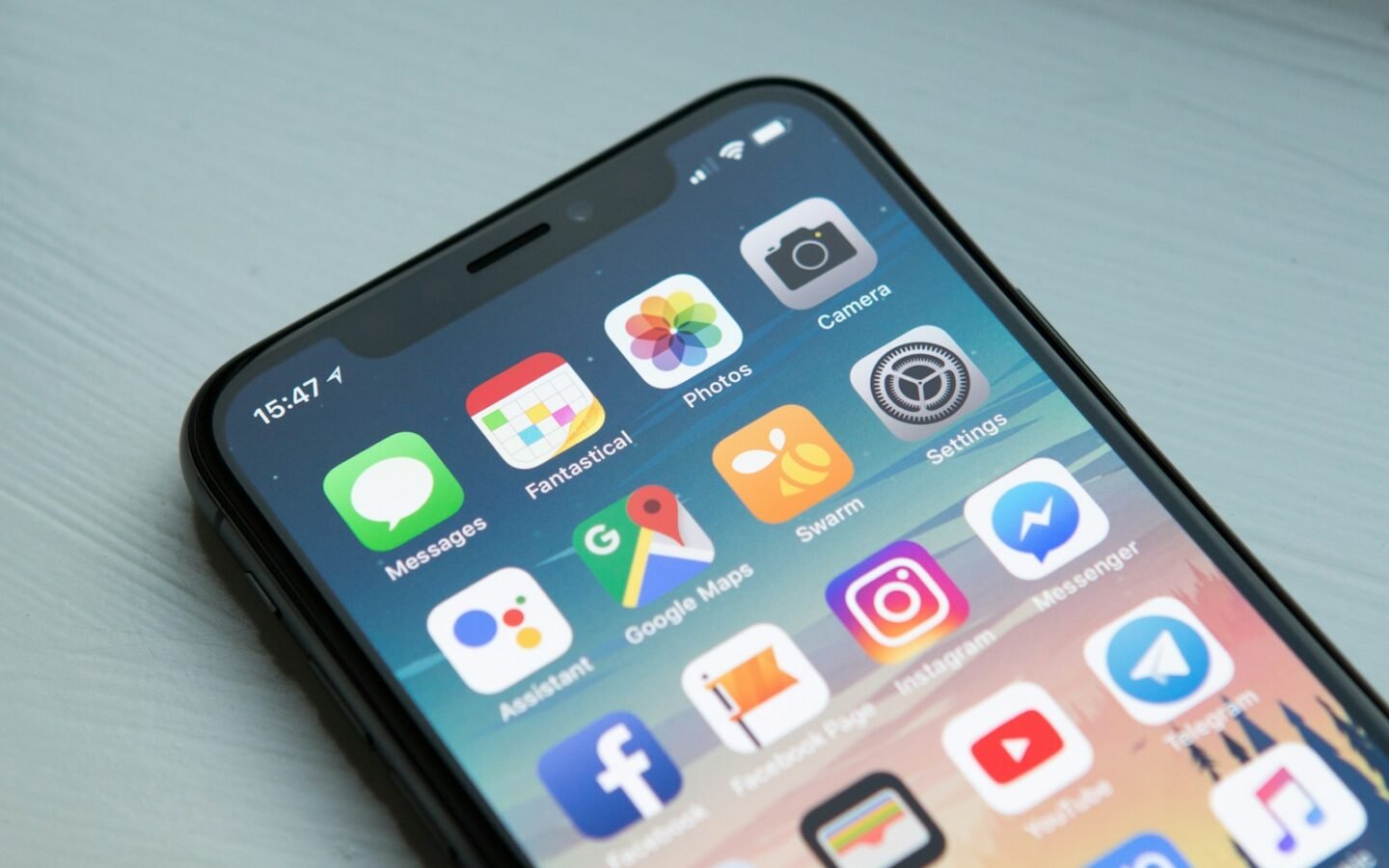
To get your original home screen back on an iPhone, open Settings > General > Transfer or Reset iPhone > Reset > Reset Home Screen Layout. Before you reset, check for hidden pages and Focus settings, because the reset removes your custom arrangement. On an Android phone, check which Home app is in charge: open Settings, search for Home app, and pick your phone’s own launcher again (One UI Home on a Samsung Galaxy, Pixel Launcher on a Pixel). Then check for a simplified mode such as Easy mode or Simple View.
On Android, labels differ from one phone maker to the next, so use the search box at the top of Settings when a menu isn’t where this guide says.
This guide is part of DeviceGod’s Android how-to guides and iPhone how-to guides.
First, figure out what actually changed
People mean one of three things by “original home screen,” and each one has a different fix.
- The look changed completely (new icons, a different app drawer, a new search bar). A different launcher, simplified mode or display setting may be responsible. Switching back may restore your saved layout.
- The look is the same, but apps and folders moved. The layout itself was edited or reset. Switching apps won’t help. You either rebuild it, restore it from a backup, or reset to the factory arrangement.
- You want the layout the phone had out of the box. That’s a reset, and it wipes your custom arrangement.
Android: switch back to your phone’s Home app
- Open Settings.
- Search for “Home app” or go to Apps > Default apps (on Samsung: Apps > Choose default apps).
- Tap Home app and select the launcher that shipped with the phone. On a Galaxy that’s One UI Home. On a Pixel it’s Pixel Launcher.
- Press the Home button or swipe home. Your previous layout may return if the original launcher still has its saved arrangement.
If you no longer need the third-party launcher, uninstall it after switching to your preferred Home app.
Samsung Galaxy: check Easy mode and the layout settings
Galaxy phones have a few switches that make the Home screen look unfamiliar without changing launchers.
- Easy mode. Big icons and a simplified layout usually mean Easy mode is on. Go to Settings > Display > Easy mode and turn it off.
- No Apps screen. If every app is spread across your Home screen pages and swiping up does nothing, touch and hold an empty spot on the Home screen, tap Settings, then Home screen layout, and choose Home and Apps screens.
- Locked layout. If you can’t move anything, turn off Lock Home screen layout in the same Home screen settings.
- Different grid. If icons look bigger or rows shifted after an update, change the Home screen grid in Home screen settings. One UI 7 dropped some older grid sizes, so your previous grid may not be available.
Android: put a missing app icon back
If only an app icon is missing, open the app drawer, touch and hold the app, then drag it onto the Home screen.
Google Pixel: turn off Simple View
Simple View gives supported Pixel phones larger text and icons and a simplified Home screen layout. If your Pixel suddenly looks oversized and simplified, open Settings > Accessibility, tap Simple View, and turn off Use Simple View. Turning it off returns the phone to its original font, display and layout settings.
Android: restore a layout from a backup
There’s no undo button for a Home screen layout on a phone you’re already using. A backup helps only if it was made before the change.
- Samsung Cloud. Go to Settings > Accounts and backup > Restore data. If a backup from before the change lists Home screen, restoring it replaces your current layout.
- Google backup. Google backup may restore launcher settings during device setup, but layout recovery isn’t guaranteed. Don’t factory-reset solely to recover icon positions.
- Third-party launchers. Launchers like Nova have their own backup and restore option in their settings.
Android: reset the launcher as a last resort
This removes custom layouts and launcher preferences, not installed apps. The resulting layout may differ from your original arrangement, so do it only if you want a clean start.
- Open Settings > Apps.
- Find your launcher (One UI Home, Pixel Launcher). You may need to show system apps from the menu.
- Tap Storage, then Clear data or Clear storage.
- Return to the Home screen. The launcher resets its layout and preferences, including custom folders and widgets. Other apps remain installed.
iPhone: fixes that don’t wipe your layout
- A missing page. Touch and hold the Home Screen, tap the page dots at the bottom, and check the circle under any hidden page.
- A different Home Screen in a Focus. Focus modes can show only selected pages. Go to Settings > Focus, open the active Focus, and review the Home Screen pages it uses, or turn the Focus off in Control Center.
- New apps not showing up. Go to Settings > Home Screen & App Library and choose Add to Home Screen for newly downloaded apps.
- Dark, tinted or large icons. Touch and hold the Home Screen, tap Edit, then Customize. Pick the default look and the smaller icon size. The exact option names change between iOS versions.
- An app moved to the App Library. Swipe left past your last page, find the app, and drag it back onto a Home Screen page.
iPhone: reset the Home Screen to the original layout
- Open Settings > General.
- Tap Transfer or Reset iPhone, then Reset.
- Tap Reset Home Screen Layout, then Reset Home Screen.
Only tap Reset Home Screen Layout. The other options on that screen reset different things, and Erase All Content and Settings wipes the phone.
After the reset, Apple’s built-in apps go back to their original spots. Any folders you made are deleted, and the apps you downloaded are lined up alphabetically after Apple’s apps. No apps or app data are deleted.
Related guides
- How to remove an app from the Android Home screen without uninstalling it
- How to get rid of a black background on Android
- Can you remove the date and time from the iPhone Lock Screen?
Frequently asked questions
How do I get my old home screen back after an update?
On Android, first check that your usual Home app is still selected under Settings > Home app, then check the grid size in Home screen settings. On iPhone, an update doesn’t normally reset the layout. Check for hidden pages and Focus settings before resetting anything.
Will resetting the home screen delete my apps?
No. On iPhone, Reset Home Screen Layout only moves icons and removes folders. On Android, clearing the launcher’s data resets icons, folders and widgets but keeps every app installed.
Why does my Android home screen look different all of a sudden?
Likely reasons include a newly installed launcher, Easy mode on a Samsung, Simple View on a Pixel, or a software update that changed the grid. Each one has its own fix above.
How do I switch back to the Home screen?
Swipe up from the bottom edge of the screen, or press the Home button if your phone shows one.
Can I undo a Reset Home Screen Layout on iPhone?
Not directly. Rearrange the apps manually. Restoring an older device backup may recover the layout but can replace newer data.