Beats are made by Apple, but they aren’t locked to iPhones. Most Beats earbuds and headphones pair quickly with Android phones, often with a one-tap pop-up, and they work with Windows PCs like any other Bluetooth headset. Here’s how to connect Beats to Android and Windows, and how to fix them when they won’t pair.
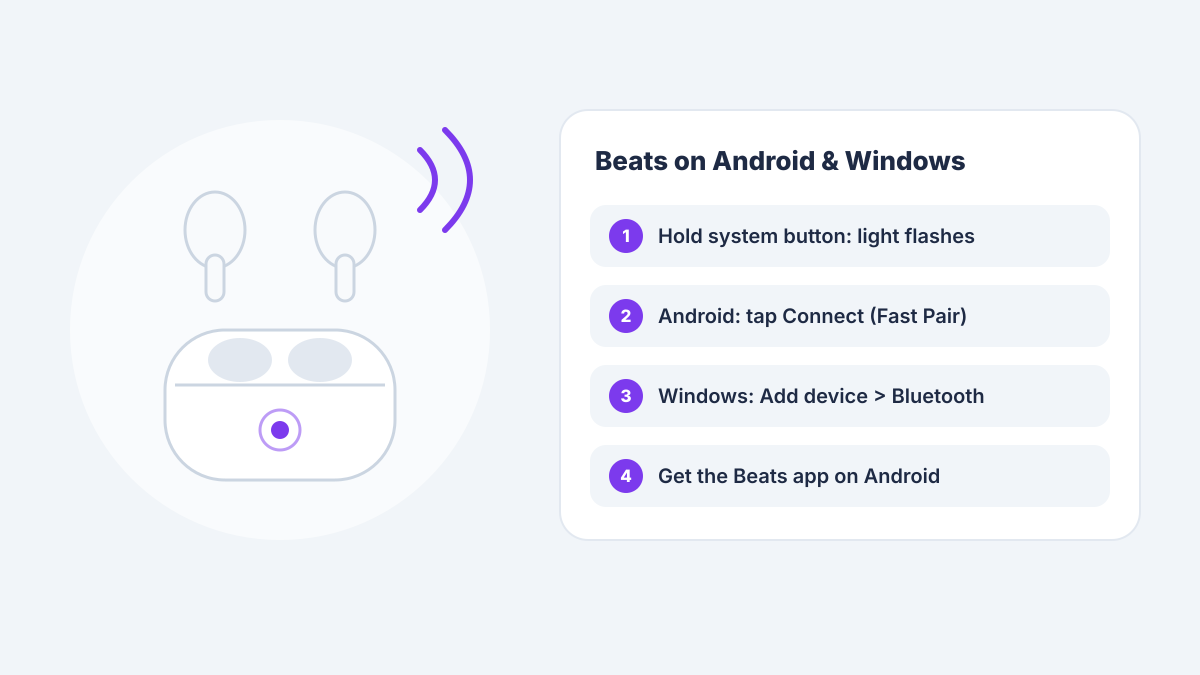
Quick answer: Put your Beats in pairing mode. For earbuds, keep them in the open case and hold the case’s system button until its light starts blinking (on Beats Solo Buds, press the “b” button on either earbud and keep holding until the tone repeats). For headphones, hold the power or system button until the indicator blinks. Then select the Beats in your Android phone’s Bluetooth settings, or in Settings > Bluetooth & devices > Add device on Windows 11.

Put Beats in pairing mode
Pairing mode makes your Beats visible to a new device. Use the steps for your type of Beats:
- Earbuds in a charging case (such as Beats Fit Pro, Studio Buds + and Powerbeats Pro 2): Keep them in the open case and hold the system button until the LED blinks white.
- Beats Solo Buds: Leave both earbuds in the open case, then press and keep holding the “b” button on one earbud until the pairing tone repeats. There’s no system button on this model.
- Beats Flex: Hold the power button on the right-hand control module until the LED starts blinking.
- Headphones (such as Beats Studio Pro and Solo 4): Press and hold the system button or power button until the light flashes.
Keep the Beats close to your phone or computer while pairing.
Pair Beats with an Android phone
Using Fast Pair (supported Beats):
- Turn on Bluetooth on the phone.
- Put your Beats in pairing mode, or simply open the case next to the phone.
- Tap Connect on the pop-up that appears.
After you set up Beats with Fast Pair, they’re also paired with your other Android devices signed in to the same Google account.
Manually:
- Put your Beats in pairing mode.
- On the phone, open Settings > Connected devices > Pair new device (on Samsung, Settings > Connections > Bluetooth).
- Tap your Beats when they appear.
Get the Beats app: Apple’s free Beats app for Android shows battery levels and installs firmware updates, and it adds model-specific features such as custom controls, listening modes and location tracking. If the app can’t pair your Beats directly, it sends you to Bluetooth settings to finish.
Pair Beats with a Windows 11 PC
- Put your Beats in pairing mode.
- Open Settings > Bluetooth & devices.
- Click Add device, then Bluetooth.
- Select your Beats from the list and wait for Connected.
- Click the sound icon in the taskbar and make sure your Beats are chosen as the output.
Windows 10: Open Settings > Devices > Bluetooth & other devices > Add Bluetooth or other device > Bluetooth, then select your Beats.
There’s no Beats app for Windows, so features such as noise control are changed with the buttons on the Beats themselves.
Use Beats with an Android phone and a PC
Beats remember several devices, but they usually play from one at a time. Some models, such as Studio Buds +, can also switch automatically between compatible Android devices and Chromebooks. To switch:
- On the PC: Open Settings > Bluetooth & devices, find your Beats and click Connect.
- On the phone: Open Bluetooth settings and tap the Beats.
If they keep jumping back to the other device, turn off Bluetooth on the device you’re not using.
Beats won’t connect to Android or Windows?
- Charge them. Put earbuds in the case or plug in headphones for a while.
- Start pairing mode again. Hold the button until you see your model’s pairing light or hear the pairing tone.
- Forget the old pairing. Remove the Beats from the device’s Bluetooth list, then pair again.
- Disconnect from your iPhone or iPad. Beats often reconnect to the Apple device they were last used with. Turn off its Bluetooth while you pair.
- Update the firmware with the Beats app on Android, or by connecting to an iPhone with the latest iOS.
- Check Windows Bluetooth. If there’s no Add device option, see Bluetooth not working on Windows 11.
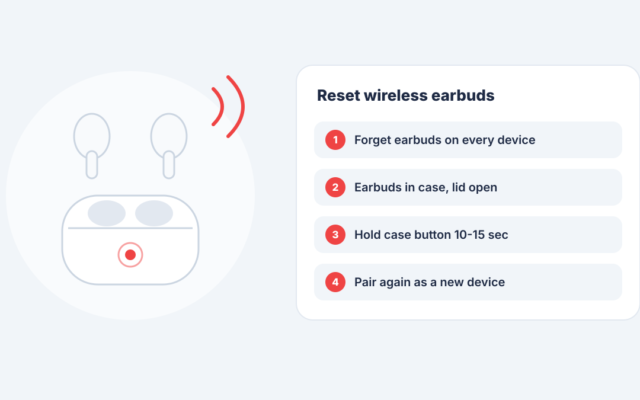
- Reset your Beats. Reset steps differ by model. Our guide on how to reset wireless earbuds covers the general approach.
Related guides
- How to pair Bluetooth earbuds with any phone or computer
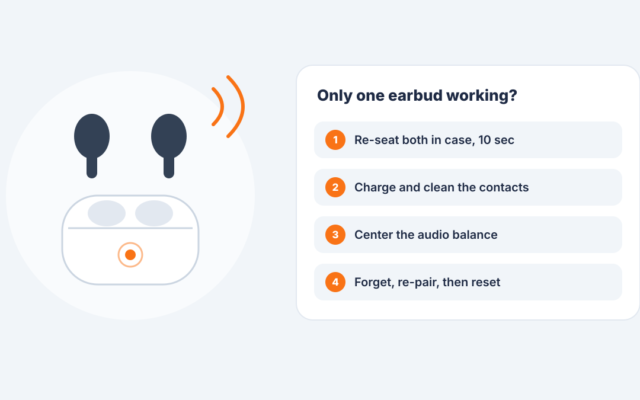
- Only one earbud working? How to fix it
- Headphones not detected on Windows 11
Frequently asked questions
Can you pair Beats with Windows?
Yes. Beats connect to Windows like any Bluetooth headset. Put them in pairing mode and add them from Settings > Bluetooth & devices.
Can Beats headphones be paired with Android?
Yes. Many models support Fast Pair for one-tap setup, and every model can pair through Android’s Bluetooth settings. The Beats app adds extra features.
How do I put Beats in pairing mode?
For earbuds, keep them in the open case and hold the system button until the LED blinks (on Beats Solo Buds, press the “b” button on either earbud and keep holding until the tone repeats). For headphones and Beats Flex, hold the power or system button until the indicator blinks.
Can you connect Beats to multiple devices?
They remember multiple devices, but most play from one at a time. Switch by selecting them in the Bluetooth settings of the device you want to use.
Conclusion
Beats work well beyond Apple devices. Get them into pairing mode with the system or power button, and they’ll pair with an Android phone in seconds and with a Windows PC through its normal Bluetooth settings. Install the Beats app on Android to keep the firmware up to date.