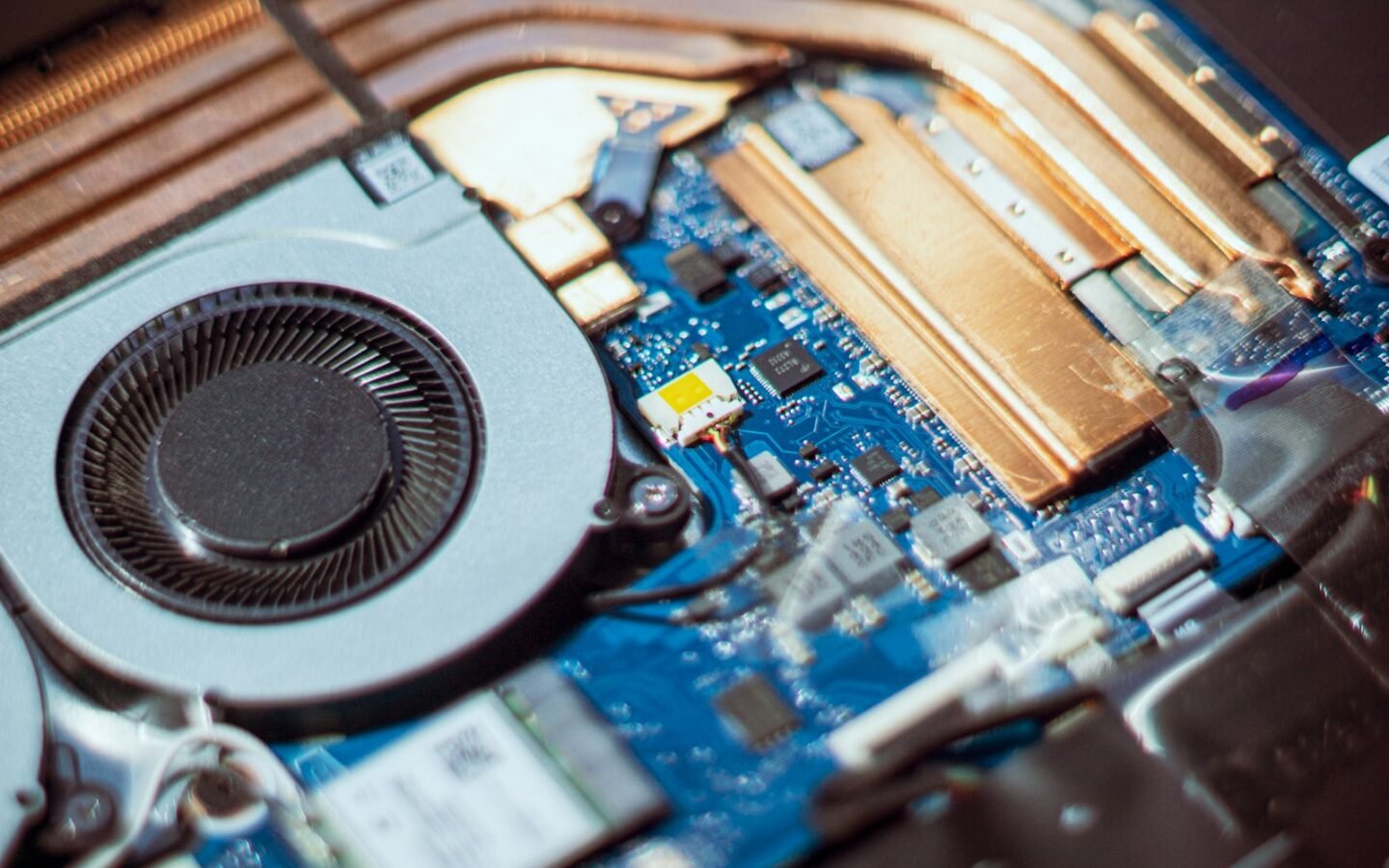
A loud fan on a Lenovo laptop usually means the processor is working hard, the laptop is set to a performance mode, or dust is blocking the airflow. Start with three quick fixes. Check Task Manager for a program using a lot of CPU. Switch to a quieter mode with Fn + Q on supported IdeaPad, Yoga, ThinkBook, Legion and LOQ models, or with the Windows power mode setting. Then make sure the vents aren’t blocked. A grinding, rattling or clicking sound is different: that points to a worn fan or something touching the blades, and it needs cleaning or a repair.
This guide is part of DeviceGod’s Windows how-to guides.
What the noise is telling you
| What you hear | Likely cause | What to do |
|---|---|---|
| Steady whoosh that rises under load | Normal cooling | Nothing, or switch to a quieter mode |
| Loud fan with nothing open | Background task, update or scan | Check Task Manager and give updates time to finish |
| Loud fan only when charging | Performance mode on AC power, plus heat from charging | Choose a quieter mode while plugged in |
| Fan speeds up and down every few seconds | Fan control tuning | Update the BIOS and Lenovo drivers |
| Grinding, rattling or scraping | Worn fan bearing or debris | Clean the vents; replace the fan if it continues |
| Ticking or clicking | A blade hitting dust, a cable or a loose part | Stop using it under load and get it checked |
1. Find what’s working the processor
Press Ctrl + Shift + Esc to open Task Manager, select Processes, and sort by the CPU column. If one app sits near the top using a lot of CPU, close it or restart it. Common culprits are a browser with many tabs, a video call, a game launcher, a cloud sync app catching up, or Windows Update installing in the background.
Right after you turn on the laptop, Windows often runs updates, indexing and a security scan for several minutes. A loud fan during that time is normal. If it settles once the tasks finish, nothing is wrong.
2. Switch to a quieter mode
Lenovo laptops let you trade some speed for less fan noise. The higher-performance modes allow more heat and faster fan speeds, and they’re often the default when the laptop is plugged in.
- IdeaPad, Yoga, ThinkBook, Legion and LOQ: on supported models, press Fn + Q to cycle through the modes. The mode names and the way the laptop shows the current mode, such as an on-screen icon or a colored power-button light, vary by model. Choose Quiet or Battery Saving for the lowest noise. If Fn + Q does nothing, check Lenovo Vantage or your model’s user guide.
- ThinkPad and other models: in Windows 11, open Settings, then System, then Power & battery, and set Power mode to Best power efficiency if it’s offered. On Windows 10, select the battery icon and move the power slider toward Best battery life, if your laptop offers it.
- Lenovo Vantage: open Vantage and look for the thermal, power or Intelligent Cooling setting, often under Device, then Power. Menu names and locations vary by model, and some Legion laptops use Legion Space instead.
Quiet modes lower performance. For browsing, documents and video they’re usually fine. For gaming or video editing, expect the fan to get loud again in a performance mode.
3. Give the laptop room to breathe
Most Lenovo laptops pull air in through the bottom and push it out at the back or sides. A bed, sofa or your lap blocks the intake, so the fan spins faster to make up for it. Use the laptop on a hard, flat surface, keep the back edge clear, and raise the rear slightly with a stand if it runs hot. A warm room makes the fan work harder too.
4. Clean the vents
Dust builds up on the fan and the heatsink fins and chokes the airflow. A laptop that has grown louder over months or years usually needs cleaning.
- Shut the laptop down and unplug it. Don’t just put it to sleep.
- Blow compressed air into the outside vents in short, gentle bursts. Keep the can upright so liquid propellant doesn’t come out.
- Don’t let the air spin the fan fast, which can wear the bearing, and don’t push tools or cotton swabs through the vents.
- Turn the laptop on and listen. If it’s quieter under similar conditions, dust was likely part of the problem.
A full internal clean means removing the bottom cover. Many ThinkPads are designed for it, but on some models opening the case can affect the warranty. Check your warranty first, or let a repair shop do it.
5. Update the BIOS and drivers
BIOS updates can sometimes improve fan control, especially when a fan speeds up and slows down constantly, though they aren’t guaranteed to fix the noise. Open Lenovo Vantage, go to the System Update section, and install the BIOS, chipset and power management updates it offers. Keep the laptop plugged in and don’t turn it off while the BIOS updates. Install Windows Update too.
6. Optional: cap the processor boost
On some laptops, limiting the processor slightly reduces its boost speed, and with it heat and fan noise. Results vary by processor and power plan, and heavy tasks will run slower.
- Press Windows key + R, type powercfg.cpl and press Enter.
- Select Change plan settings next to your plan, then Change advanced power settings.
- Expand Processor power management, then Maximum processor state.
- Set Plugged in to 99% and select OK.
Set it back to 100% to undo it. The setting may not appear on every laptop, and on some processors it changes little.
When the fan itself is failing
Grinding, scraping or a rattle that changes with the fan speed usually means a worn bearing or something touching the blades. Cleaning sometimes fixes a rattle caused by debris. A worn bearing tends to get noisier over time, and a fan that stops working can cause overheating, slowdowns or unexpected shutdowns.
Some Lenovo models include a diagnostics tool, either as an app or in the startup menu, that can test the fan. Not every model has one. If a test fails or the noise continues, contact Lenovo support while the laptop is under warranty. Out of warranty, a repair shop can replace the fan; the cost and difficulty depend on the model.
Stop and get help if it overheats
If the laptop gets unusually hot, shuts down without warning, shows a fan error at startup or keeps making a scraping noise, stop any heavy tasks and shut it down. Running it hot for long periods can shorten the life of the battery and other parts. Have the cooling system checked before you go back to demanding work.
Related Windows guides
- How to see all open windows in Windows 11 and 10
- How to allow a website through your firewall
- What “Pin to Start” means in Windows
Frequently asked questions
Is it safe to use a laptop if the fan is making noise?
A loud but smooth whoosh is the fan doing its job, so yes. Grinding, clicking, or a laptop that shuts down from heat is a warning sign. Back up your files and get the fan checked.
Why is my Lenovo laptop fan suddenly so loud?
Usually a background task such as an update, a sync or a scan, a switch to performance mode, or a blocked vent. Check Task Manager first, then the mode. If the noise has crept up over months, clean the vents.
Is it normal for a Lenovo laptop fan to run constantly?
A low, steady hum can be normal, especially when plugged in or in a performance mode. A fan that stays loud while the laptop is idle points to a background process, dust or outdated firmware.
Why is my Lenovo fan loud only when charging?
Many models switch to a higher-performance mode on AC power, and the battery adds heat while it charges. Choose a quieter mode with Fn + Q or the Windows power mode setting while plugged in.
Why is my Lenovo laptop fan loud when turning on?
A short burst of fan noise at startup can be normal while the laptop runs its checks. A fan that grinds, stays loud or shows a fan error message at startup points to a cooling problem that needs service.
Can I turn the fan off completely?
No, and you shouldn’t try. Fan-control utilities that force the fan off can let the processor overheat. Use a quiet mode instead.