Nothing and CMF earbuds are some of the easiest to pair on Android, thanks to Google Fast Pair, but the steps change once they have already been connected to something. This guide covers first-time pairing, adding a second phone or a laptop, and what to do when the earbuds refuse to show up.
Quick answer: Put both earbuds in the charging case and open the lid. If this is the first time, they enter pairing mode on their own. Otherwise, press and hold the button on the case until the light flashes, then pick the earbuds from your phone’s or computer’s Bluetooth list. On many Android phones, a Fast Pair pop-up appears as soon as you open the case.
Which earbuds this guide covers
The steps work for Nothing Ear and Ear (a) models and for CMF Buds models such as CMF Buds, Buds 2, Buds 2a, Buds 2 Plus and Buds Pro 2. Nothing headphones and the CMF Buds Neo are a little different, and each has its own note below.
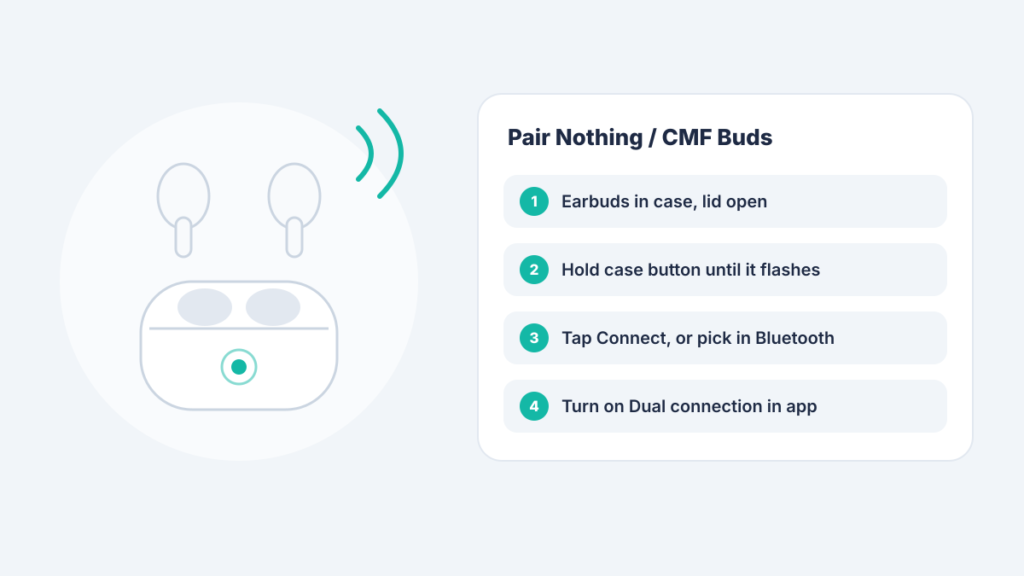
Put Nothing or CMF Buds in pairing mode
- Place both earbuds in the charging case.
- Leave the lid open.
- Press and hold the button on the case until the indicator light flashes white, usually after 2 to 3 seconds.
- Keep the case close to the device you’re pairing with.
New earbuds that have never been paired go straight into pairing mode when you open the case, so you can skip the button.
If the earbuds are already connected to one device and set to a single connection, they won’t announce themselves to a new device. You have to start pairing mode manually with the case button each time you add a device.
Pair with an Android phone
With Fast Pair (fastest):
- Turn on Bluetooth on the phone (some phones also need Location turned on).
- Open the case next to the phone.
- Tap Connect on the pop-up that appears.
Manually:
- Put the earbuds in pairing mode.
- Open Settings > Connected devices (or Connections > Bluetooth on Samsung).
- Tap Pair new device and choose your earbuds from the list. On a Samsung phone, select them under Available devices instead.
Then install the free Nothing X app from the Play Store. It adds controls, equalizer settings, firmware updates and the dual connection switch.
Pair with an iPhone
- Put the earbuds in pairing mode.
- Open Settings > Bluetooth and make sure Bluetooth is on.
- Tap the earbuds under Other Devices.
- Install Nothing X from the App Store for controls and updates.
Pair with a Windows 11 PC
Most current Nothing and CMF earbuds support Microsoft Swift Pair, so Windows can show a “New device found” notice when the case is opened nearby.
- Put the earbuds in pairing mode.
- If a Swift Pair notification appears, click Connect.
- If it doesn’t, open Settings > Bluetooth & devices > Add device > Bluetooth and select the earbuds.
On a Mac, open System Settings > Bluetooth, wait for the earbuds to appear and click Connect.
Connect to two devices at once
Many recent Nothing and CMF models support dual connection, so they can stay linked to a phone and a laptop together.
- Pair the earbuds with the first device.
- Open Nothing X and turn on Dual connection in the earbuds’ settings.
- Put the earbuds back in pairing mode with the case button and pair the second device.
You can then switch between the two devices from Nothing X. If your model doesn’t have the option, disconnect the earbuds on the first device before pairing the second one.
Pair Nothing headphones or CMF Buds Neo
- Nothing headphones: Press and hold the Bluetooth pairing button until the white light flashes, then select the headphones on your device. If nothing connects within about two minutes, they stop searching and you need to press the button again.
- CMF Buds Neo: There’s no case button to use for pairing, so take them out of the case and follow the pairing steps in the quick guide that came with them. To reset them, wear both earbuds and press and hold both for about 10 seconds until you hear the reset prompt.
If your Nothing or CMF Buds won’t connect
- Charge the case. When the case battery is almost empty, the light stays off and the button does nothing.
- Forget the old pairing. Remove the earbuds from your device’s Bluetooth list, then pair them again from scratch.
- Turn off Bluetooth on other devices. Earbuds often reconnect to the last phone or tablet they used.
- Update the firmware in Nothing X, then try again.
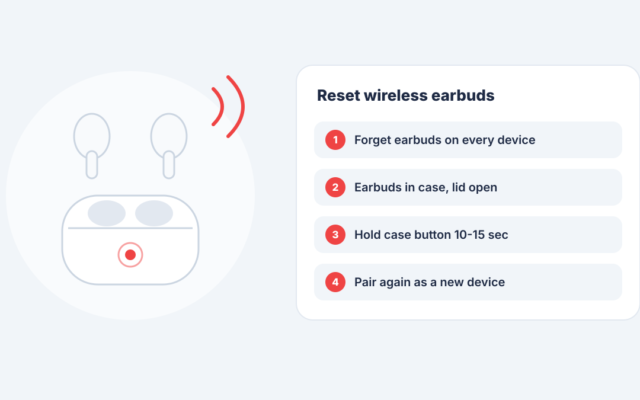
- Reset them. With both earbuds in the open case, press and hold the case button for about 10 seconds On most Nothing and CMF Buds, the light blinks red three times when the reset is done, but the exact signal can vary by model. Then delete the earbuds from your device and pair again.
Resetting clears every saved device, so you’ll need to pair your phone and computer again afterward. For more reset steps across brands, see our guide on how to reset wireless earbuds.
Related guides
- How to pair Bluetooth earbuds with any phone or computer
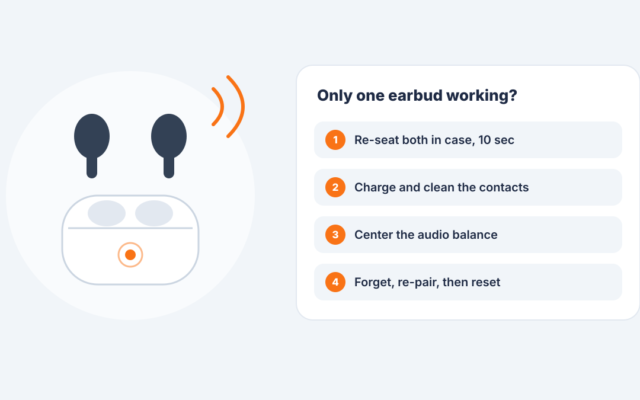
- Only one earbud working? How to fix it
- Headphones not detected on Windows 11
Frequently asked questions
How do I put my CMF Buds in pairing mode?
Put both earbuds in the case, leave the lid open and hold the case button until the light flashes, usually 2 to 3 seconds.
Why are my CMF Buds not connecting?
The usual causes are a drained charging case, an old pairing saved on the phone, or the earbuds reconnecting to another nearby device. Charge the case, forget the earbuds on your phone and pair again. If that fails, reset them.
Do I need the Nothing X app?
No. The earbuds pair through normal Bluetooth settings. The app adds controls, firmware updates and features such as dual connection.
Can Nothing earbuds connect to a laptop?
Yes. Put them in pairing mode and add them in your laptop’s Bluetooth settings. Windows PCs may show a Swift Pair pop-up to make it quicker.
Conclusion
For almost every Nothing and CMF model, pairing comes down to one move: earbuds in the open case, hold the case button until the light flashes, then choose them on your device. When something goes wrong, forget the old pairing first and reset only if that doesn’t work.