Galaxy Buds pair with a Samsung phone almost by themselves, but a Windows PC needs you to put them in pairing mode first, and the way you do that depends on which Galaxy Buds you own. Here’s how to connect every Galaxy Buds model to a Windows 11 or Windows 10 computer, and what to do when the PC won’t find them.
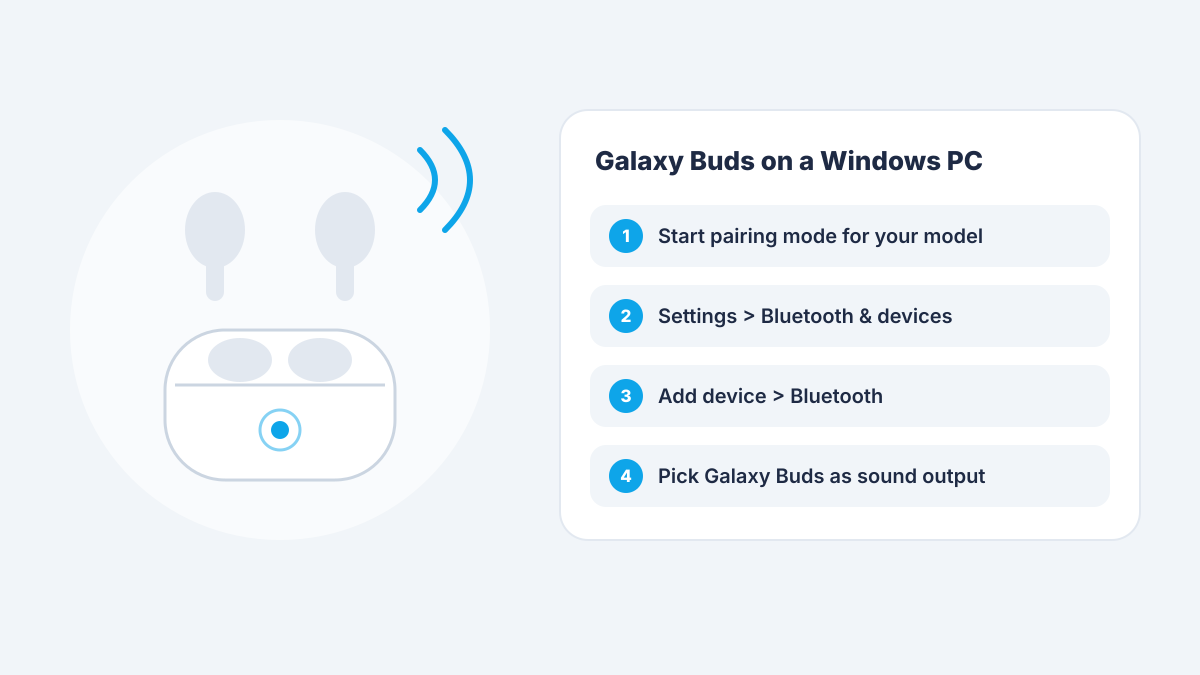
Quick answer: Put your Galaxy Buds in pairing mode. On Buds3 and Buds4 models, open the case and hold the button on the case for about 3 seconds. On older models, touch and hold both earbuds for more than 3 seconds. Galaxy Buds3 FE also uses the button on the case. Then on the PC, open Settings > Bluetooth & devices > Add device > Bluetooth and select your Buds.
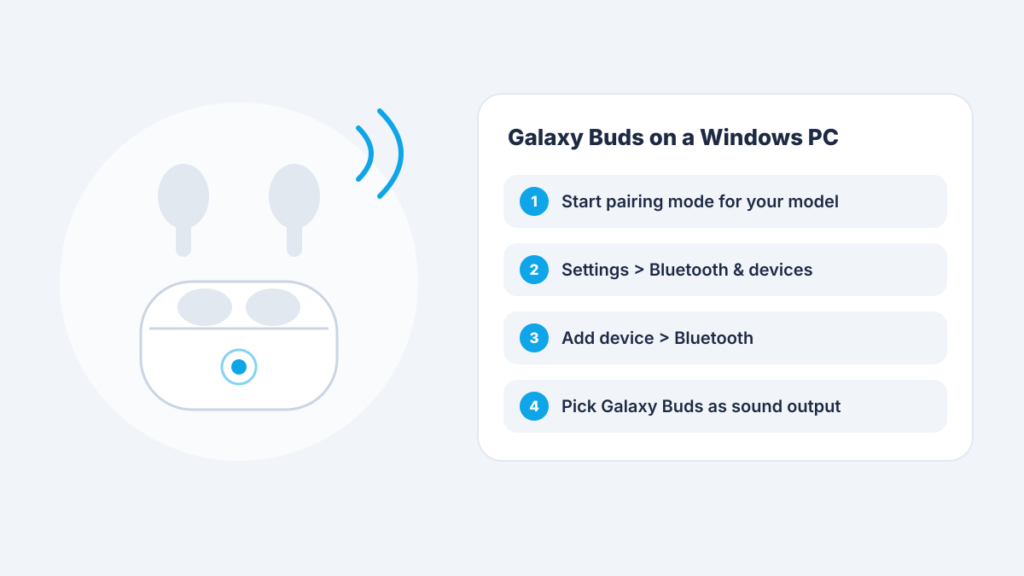
Put your Galaxy Buds in pairing mode
Pick the steps for your model. The model name is printed inside the case lid and shown in the Galaxy Wearable app.
| Model | How to start pairing mode | What you’ll see or hear |
|---|---|---|
| Galaxy Buds4, Buds4 Pro | With both buds seated in the open case, press the connect button on the case’s rear for 3+ seconds | The light flashes blue, red and green |
| Galaxy Buds3, Buds3 Pro, Buds3 FE | With both buds seated in the open case, press the connect button underneath the case for 3+ seconds | The light flashes blue, red and green |
| Galaxy Buds2, Buds2 Pro | With the earbuds in the open case, press and hold the touchpads on both earbuds together for 3+ seconds | The light flashes blue, red and green |
| Galaxy Buds, Buds+, Buds Live, Buds Pro | Wear both earbuds, then touch and hold both touchpads for more than 3 seconds | You hear a tone in the earbuds |
If the earbuds are already connected to your phone, pairing mode still works. They’ll be visible to the PC for a short time, so start the steps on the computer straight away.
Connect Galaxy Buds to a Windows 11 PC
- Make sure Bluetooth is turned on. Click the network, sound and battery icons in the taskbar and check the Bluetooth tile.
- Put your Galaxy Buds in pairing mode.
- Open Settings > Bluetooth & devices.
- Click Add device, then Bluetooth.
- Select your Galaxy Buds when they appear in the list.
- Click Done once Windows says they’re connected.
Many Galaxy Buds support Microsoft Swift Pair. If a “New device found” notification pops up when you put the Buds in pairing mode, you can click Connect there instead.
Connect Galaxy Buds to a Windows 10 PC
Windows 10 reached the end of standard support on October 14, 2025. Bluetooth pairing still works the same way, but moving to Windows 11 keeps your PC getting security updates.
- Open Settings > Devices > Bluetooth & other devices.
- Make sure Bluetooth is On.
- Click Add Bluetooth or other device > Bluetooth.
- Put your Galaxy Buds in pairing mode and select them from the list.
Switch between your phone and your PC
Galaxy Buds remember several devices, but they usually connect to one at a time. To move them from your phone to your PC:
- On the PC, open Settings > Bluetooth & devices, find the Buds and click Connect.
- Or turn off Bluetooth on your phone, then open the case near the PC.
On a Samsung phone signed in to your Samsung account, newer Buds can also switch automatically between Samsung phones and tablets. Auto Switch also works with some supported Samsung Galaxy Book laptops, but on other Windows PCs connecting is still a manual step.
Galaxy Buds not showing up on your PC?
Work through these checks in order:
- Start pairing mode again. Pairing mode only lasts a short time. Repeat it, then go straight to Add device on the PC.
- Disconnect from the phone. Turn off Bluetooth on your phone, or close the Buds in the case, so they stop reconnecting to it.
- Remove an old pairing. If the Buds are listed on the PC but won’t connect, click the three dots next to them, choose Remove device, then pair again.
- Check the PC’s Bluetooth. If there’s no Bluetooth tile or Add device button, see our guide to fixing Bluetooth on Windows 11.
- Update Windows. Go to Settings > Windows Update and install any updates. To look for a newer Bluetooth driver, open Advanced options > Optional updates > Driver updates.
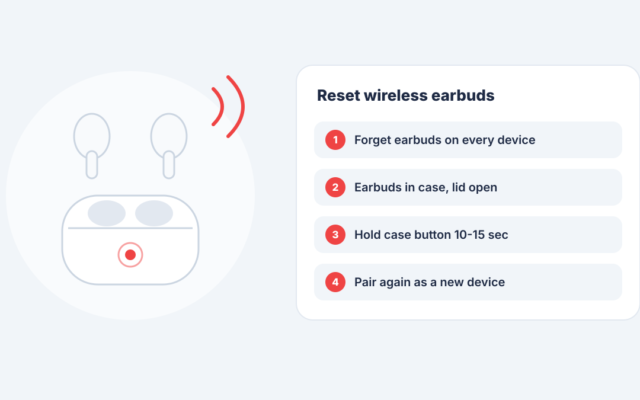
- Reset the Buds. On a Samsung phone with One UI 8 or later, open Settings, tap your Galaxy Buds, then tap Manage connections > Reset and confirm. On older software, use the Galaxy Wearable app, where the option sits under Earbuds settings or About earbuds. You’ll need to pair everything again afterward.
No sound or a muffled microphone after connecting
Once the Buds are connected, Windows may still play sound through the laptop speakers.
- Click the sound icon in the taskbar.
- Click the arrow next to the volume slider.
- Choose your Galaxy Buds as the output.
For calls, select the Buds as the speaker and microphone in Teams or Zoom. If music or voices sound flat once the mic is active, choose the laptop’s built-in microphone instead, since Bluetooth hands-free mode lowers audio quality. If your PC can’t find the Buds at all as an audio device, see headphones not detected on Windows 11.
Related guides
- How to pair Bluetooth earbuds with any phone or computer
- How to reset wireless earbuds
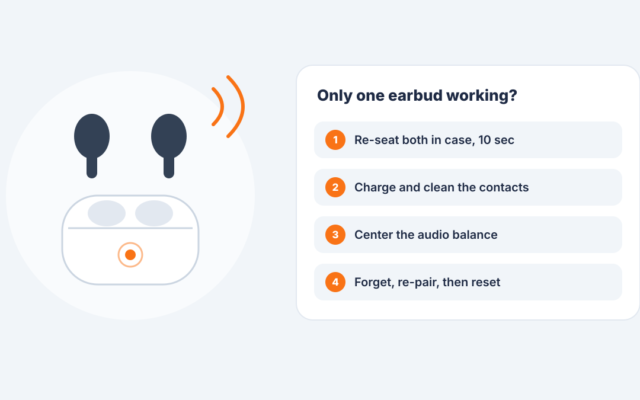
- Only one earbud working? How to fix it
Frequently asked questions
Can I use Samsung Galaxy Buds with a PC?
Yes. Galaxy Buds are standard Bluetooth earbuds, so they work with any Windows PC or laptop that has Bluetooth.
How do I put my Galaxy Buds in pairing mode?
It depends on the model. Buds3, Buds3 FE and Buds4 use a button on the case. Buds2 models use a touch and hold on both earbuds while they sit in the open case, and the original Buds, Buds+, Buds Live and Buds Pro use a touch and hold on both touchpads while you wear them. See the table above.
Why are my Galaxy Buds not connecting to my laptop?
Usually they’re still connected to your phone, pairing mode timed out, or an old pairing is stuck on the laptop. Turn off the phone’s Bluetooth, remove the old pairing and start pairing mode again.
Why is my PC not detecting my earbuds?
Either the earbuds aren’t in pairing mode or the PC’s Bluetooth isn’t working. Check that the Bluetooth tile is on in Quick Settings and that the earbuds’ light is flashing.
Conclusion
Connecting Galaxy Buds to a PC takes about a minute once you know which pairing method your model uses. Put them in pairing mode, add them from Bluetooth settings, then pick them as the sound output. If they still won’t appear, disconnect them from your phone first, since that solves most problems.