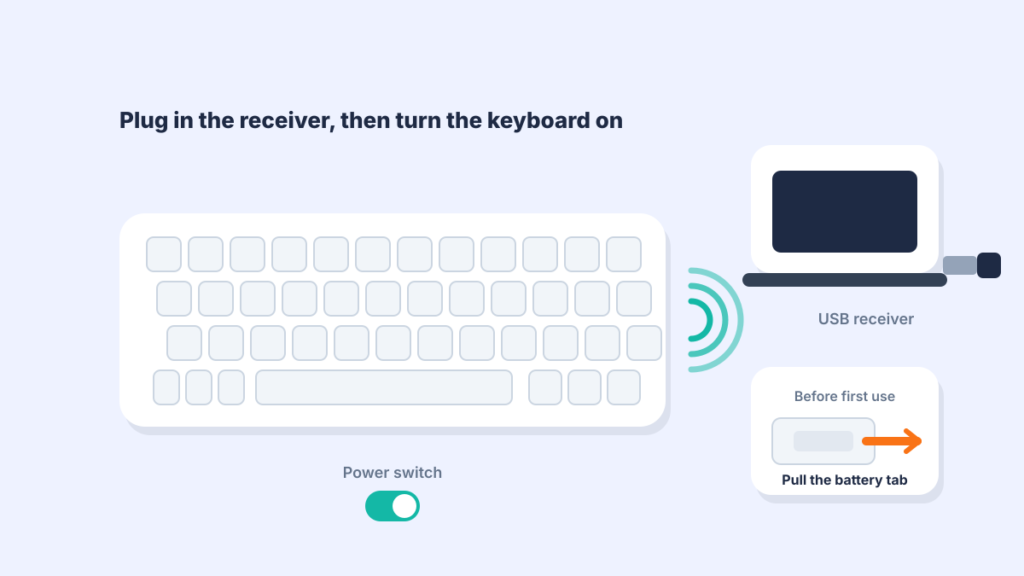
The Logitech K540 is the keyboard from the MK540 Advanced combo, and it connects through a small Logitech Unifying USB receiver, not Bluetooth. To connect it, plug the receiver into a USB port on your computer, pull out the plastic battery tab (or put in two fresh AA batteries), and slide the power switch on the keyboard to On. It should start typing within a few seconds, with no software needed. If it doesn’t, pair it again with Logitech’s Unifying software, which takes about a minute.
This guide is part of DeviceGod’s Windows how-to guides.
What you need
| Item | Details |
|---|---|
| Receiver | The Unifying USB receiver that came with the MK540, or any receiver with the orange Unifying star logo |
| Batteries | Two AA batteries in the keyboard |
| Computer | A Windows PC, Mac or Chromebook with a free USB-A port (or a USB-C adapter) |
| Software | None for basic typing. Logitech’s Unifying software is only needed to pair the keyboard again. |
How to connect the Logitech K540 for the first time
- Plug in the receiver. Insert the tiny USB receiver into a USB port on the computer. A port on the back of a desktop or directly on the laptop works best.
- Power the keyboard. Turn it over and pull out the battery tab. If there’s no tab, open the battery cover and insert two AA batteries, matching the + and – marks.
- Turn it on. Slide the power switch, near the top right of the keyboard, to On. The battery light may glow briefly.
- Wait a few seconds. The computer installs a standard keyboard driver automatically. Open a text box and type to test it.
The receiver that ships in the box is already paired with the keyboard and mouse at the factory, so most people never need to do anything else.
Is the Logitech K540 Bluetooth?
No. The K540 works only with a Logitech USB receiver. It won’t appear in your computer’s Bluetooth settings, and you can’t pair it with a phone or tablet that lacks a USB port. If you need a Bluetooth keyboard, look at a Logitech model that says “Bluetooth” on the box, such as the K380.
How to pair the K540 again with the Unifying software
Use these steps if the keyboard stopped responding, you’re using a replacement receiver, or you want one receiver for both the keyboard and a mouse.
- Download Logitech Unifying Software from Logitech’s support site and open it. Logitech no longer updates this app, so if it won’t install or run on your current Windows or macOS version, use Logi Options+ or the browser-based Logi Web Connect tool to pair the receiver instead.
- Click Next on the welcome screen.
- Turn the keyboard off, then on again when the software asks you to.
- Type a test line when the software says it has found a keyboard, then click Yes and Next.
- Click Finish. To add the mouse to the same receiver, run the software again and choose to pair another device.
One Unifying receiver can hold up to six Logitech Unifying keyboards and mice, so you can free up a USB port by pairing everything to one receiver.
K540 keyboard not working? Try these fixes
- Check the power switch and batteries. A blinking or red battery light means the batteries are low. Replace both AA batteries at the same time.
- Move the receiver. Try another USB port, and avoid USB hubs, docks and front-panel ports. If the receiver sits behind a desktop tower, use a USB extension cable to bring it closer to the keyboard.
- Clear the line of sight. Metal desks, monitors, routers and other wireless devices can block the signal. Keep the keyboard within a few feet of the receiver.
- Restart the computer with the receiver plugged in, so the system detects it fresh.
- Pair it again using the Unifying software steps above.
- Test on another computer. If it works elsewhere, the problem is the first computer’s USB port or settings. If it fails everywhere, the receiver or keyboard may be faulty.
Function keys and media keys
The top row doubles as shortcut keys. By default, F1–F12 work as normal function keys. Hold FN and press an F-key to use its Logitech shortcut, such as opening the browser or showing the desktop. On Windows, Logitech’s free customization software can swap this behavior and reassign some keys, if your keyboard is supported.
Using the K540 with a Mac or Chromebook
The keyboard works on a Mac and a Chromebook with the same plug-and-play steps, but it uses a Windows layout. On a Mac, the Windows key acts as Command and the Alt key acts as Option. You can switch these in System Settings > Keyboard > Keyboard Shortcuts > Modifier Keys if they feel backward.
Related Windows guides
Frequently asked questions
How do I put my Logitech K540 in pairing mode?
The K540 doesn’t have a pairing button. Open Logitech Unifying Software and turn the keyboard off and back on when prompted. That restart is what lets the receiver find it.
Is the Logitech K540 Unifying?
Yes. It works with any Logitech receiver that shows the orange Unifying logo.
Can I use the K540 without the receiver?
No. It has no Bluetooth, so it needs a Logitech Unifying receiver to connect. If you lost yours, a replacement Unifying receiver works after you pair it with the software.
Why is my Logitech K540 typing slowly or missing letters?
That’s usually weak batteries or interference. Replace the batteries and move the receiver closer, ideally with a USB extension cable.
What batteries does the K540 use?
Two AA batteries. Rechargeable AA batteries also work.
We last checked these steps on November 20, 2026, against Logitech’s current setup and pairing instructions. Screens in Logitech’s software may look slightly different depending on the version you install.