To pair the original OnePlus Buds or Buds Z, place both earbuds in the open charging case and hold the setup button on the case for 2 seconds until the indicator blinks white. Then choose the earbuds in your device’s Bluetooth list. The Buds Z2 and Nord Buds 2 use the same setup button, and other models may differ. The first time you open a new pair, they enter pairing mode by themselves.
These steps are for the OnePlus Buds, Buds Z and Nord Buds 2. Newer models may differ, as the table below explains.
This guide is part of DeviceGod’s Bluetooth earbuds pairing guide.
Which OnePlus Buds do these steps apply to?
| Model | Pairing procedure | Reset procedure | Status |
|---|---|---|---|
| OnePlus Buds | Hold the setup button 2 seconds | Hold 10 seconds, release after the indicator blinks red five times | Confirmed |
| OnePlus Buds Z | Hold the setup button 2 seconds | Hold 10 seconds, release when the indicator flashes red | Confirmed |
| OnePlus Nord Buds 2 | Press and hold the setup button. The manual gives no time. | Hold until the indicator blinks red. The manual gives no time. | Confirmed |
| OnePlus Buds Z2 | Uses the setup button on the case. Exact hold time not confirmed. | Not confirmed | We could not read the Z2 manual’s text. Check the manual. |
| Buds 3, Buds 4, Buds Pro 3 and other recent models | Not verified | Not verified | Check the manual for your model |
Put OnePlus Buds in pairing mode
- Place both earbuds in the charging case and leave the lid open.
- Press and hold the setup button on the case. For the original OnePlus Buds and Buds Z, hold it for 2 seconds. The indicator blinks white and the earbuds become available for pairing.
- Turn Bluetooth off and on again on your device. This refreshes the device list.
- Select the OnePlus Buds in the Bluetooth list. After a successful pairing, the indicator turns off.
If your case has no setup button, your model uses a different method. Follow its manual.
First-time pairing
When the earphones are turned on for the first time, they enter the pairing state automatically and the indicator on the case blinks white rapidly. Open the case near your phone, turn on Bluetooth and select the earbuds. You only need the setup button later, when you add another device.
Pair with a OnePlus phone
Hold the open case close to an unlocked OnePlus phone. The phone shows a quick pairing prompt, and you complete pairing by following it. Only some OnePlus phone models support quick pairing. If no prompt appears, pair from the Bluetooth list instead.
Pair with another Android phone
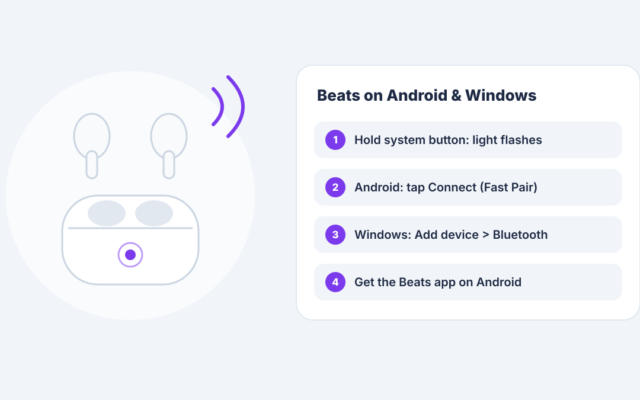
On Android phones that support Fast Pair, turning on Bluetooth and opening the case can bring up a connection pop-up. Not every Android phone shows it. On phones without it, use the setup button method and pick the earbuds under Settings, Connected devices or Bluetooth.
Pair OnePlus Buds with an iPhone
Put the earbuds in pairing mode with the setup button. On the iPhone, open Settings, tap Bluetooth, and select the earbuds under Other Devices. Basic listening and calls work over Bluetooth. Extra controls may depend on a companion app and on your model.
How to pair OnePlus Buds with Windows 11, Windows 10 or Mac
- Windows 11: Settings, Bluetooth & devices, Add device, Bluetooth, then select the earbuds.
- Windows 10: Settings, Devices, Bluetooth & other devices, Add Bluetooth or other device, Bluetooth.
- Mac: System Settings, Bluetooth, then click Connect next to the earbuds.
Put the earbuds in pairing mode first. On a computer, also check that the earbuds are chosen as the sound output after they connect.
Switch to a second device
The earphones automatically connect to the last connected device each time they are turned on. To use a different one, turn off Bluetooth on the first device, or disconnect the earbuds there, then put them in pairing mode and select them on the second device. Connecting to two devices at the same time depends on the model. Check your model’s specifications for dual-device support.
What the indicator light means
| Light on the case | Meaning |
|---|---|
| Blinking white | Pairing mode |
| Turns off after pairing | Pairing succeeded, on the original models |
| Blinking red while you hold the button for 10 seconds | Factory reset in progress |
A steady light with the lid open usually shows the charge level, and the colors vary by model.
If OnePlus Buds won’t pair
- Disconnect them from the last device. They reconnect to it automatically, which can keep them from showing up elsewhere.
- Forget the earbuds in your device’s Bluetooth list, then pair again.
- Charge the case and earbuds, and make sure both earbuds sit properly on the charging contacts.
- Stay within range. The earbuds lose the connection once they are out of range.
- Toggle Bluetooth off and on on the phone or computer.
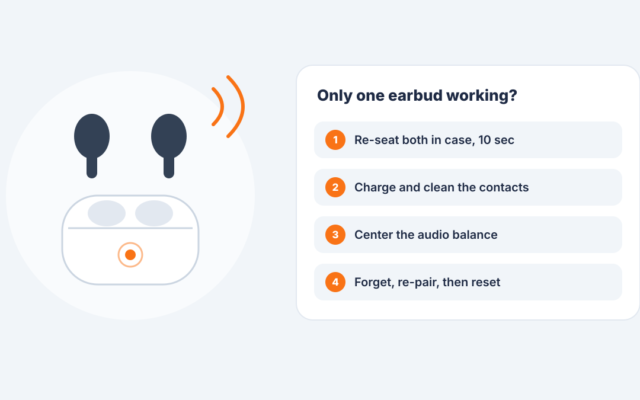
- If only one earbud connects, reseat both earbuds in the charging case, check their charging contacts and reconnect. If the issue persists, follow your model’s reset instructions.
Reset OnePlus Buds
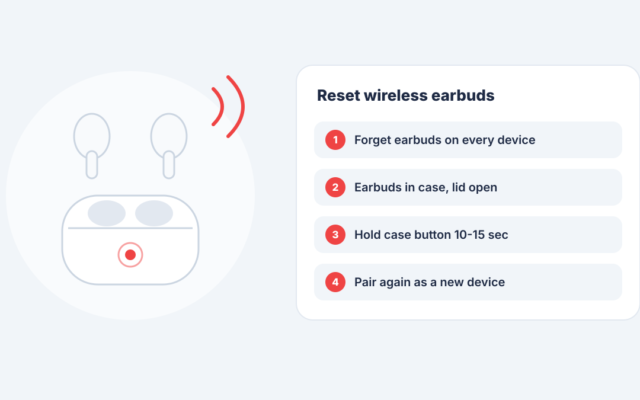
For the original OnePlus Buds and Buds Z, place both earbuds in the open case and hold the setup button for 10 seconds until the indicator flashes red, then release. On the OnePlus Buds, release after it blinks red five times. On the Nord Buds 2, hold the button until the indicator blinks red. A reset erases the pairing records, so pair the earbuds again afterward. Use the reset only after the simpler fixes above, and follow your own model’s instructions for when to release.
For another Bluetooth earbud brand, see our JBL pairing guide.
Related guides
Frequently asked questions
Why are my OnePlus Buds not connecting?
The usual suspects are an existing connection to another device, low charge, or an old pairing record on the phone. Work through the checklist above before resetting.
How do I put OnePlus Buds Z2 in pairing mode?
With the earbuds in the open case, press and hold the setup button on the case until the indicator shows pairing mode. We could not confirm the exact hold time for the Z2, so check its manual.
Do I need an app to pair OnePlus Buds?
No. Basic Bluetooth pairing needs no app. A companion app adds settings on phones that are not made by OnePlus, depending on the model.
Is there a pairing code?
Normally no. Selecting the earbuds in the Bluetooth list is enough.
Conclusion
For the OnePlus Buds and Buds Z, pairing comes down to one move: earbuds in the open case, hold the setup button for 2 seconds, then select them in Bluetooth. The Buds Z2 and Nord Buds 2 also use a setup button, but follow their model-specific instructions. If pairing fails, disconnect the previous device and consider a model-specific reset. For newer models, confirm the button and light behavior in the manual.